Inline CSS
You can add CSS directly into an HTML document by using the style attribute in the opening tag, like this:
<h1 style="color:red;">Heading 1</h1>
This is called inline CSS. Don't worry about the "color: red;" or any of the other CSS syntax for now, we'll cover it in more detail later in the course.
Internal CSS
It's also possible to use internal CSS, which is added to the head element of the same HTML document with style tags:
<head>
    <meta charset="UTF-8">
    <meta name="viewport" content="width=device-width, initial-scale=1.0">
    <title>My Web Page</title>

    <style>

        h1 {
            color: red;
        }

    </style>
</head>
This way, the CSS will apply to the whole document
External CSS
However, web developers usually use external CSS, which is stored in its own separate file. This means CSS to be reused for multiple HTML pages, which is useful for a large website. It also keeps the content separate from the styling, which makes everything easier to find.
For this course, we're going to use external CSS. To add external CSS to your HTML document, first make a new file in VS Code and name it "styles.css":
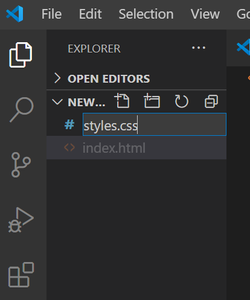
Then, add this link tag to the head of your HTML document to connect the CSS to your page:
<link rel="stylesheet" href="styles.css">
The href shows the location of the relevant CSS. If your CSS is in the same directory (folder) as the HTML, you only need to state the relative path to the file (just styles.css, instead of showing within which other folders it's stored). The rel describes how the file you are linking is related to the original HTML; in our case, since we're linking CSS, it's a stylesheet.
Also, keep in mind that later code in external CSS overrides code written above it, and inline CSS overrides any external CSS.