Doctype
Any HTML element is enclosed in tags, which are marked by <>. As you will see, many elements have opening and closing tags - closing tags look just like opening tags but also include a forward slash </>.
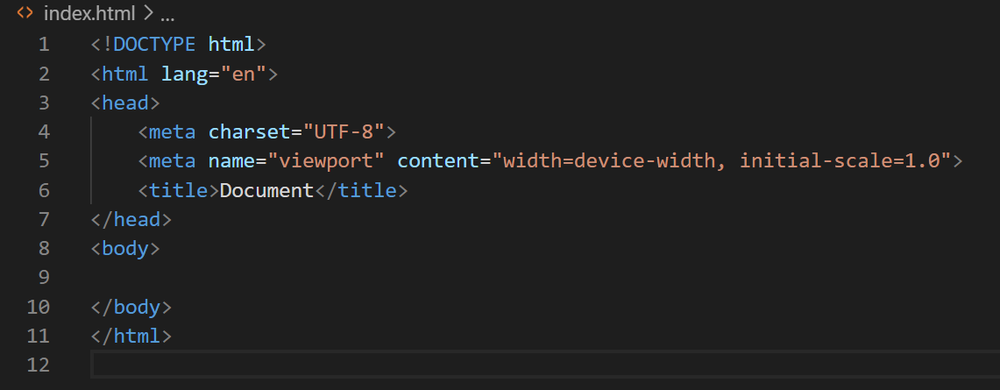
At the top of the document, there must be a document type declaration:
<!DOCTYPE html>
This lets the browser know what type of code to expect.
HTML tags
The rest of the document will be enclosed in html tags. Unlike the doctype, the html element has both an opening and a closing tag:
<!DOCTYPE html>
<html lang="en">

</html>
It's also good to specify the language of the text in your document inside the opening html tag, as you can see above (lang="en" for English). This is helpful for users with disabilities who use assistive devices like screen readers.
Head
The head element goes between the html tags, and contains the metadata. This is code that describes the page, but is not visible to the user. The metadata shown here describes the character set and screen size for the page.
<!DOCTYPE html>
<html lang="en">
    <head>
        <meta charset="UTF-8">
        <meta name="viewport" content="width=device-width, initial-scale=1.0">

        <title>My Web Page</title>
    </head>
</html>
The one thing from the head element that the user does see is the title. This title doesn't appear on the page itself - it's the title of the tab you'd see in the browser window.
Body
The body element goes right after the head element inside the html tags, and contains the actual content of the page - text, images, links, etc. We'll leave it blank for now and go over the different HTML elements in the next chapter.
<!DOCTYPE html>
<html lang="en">
    <head>
        <meta charset="UTF-8">
        <meta name="viewport" content="width=device-width, initial-scale=1.0">
        <title>My Web Page</title>
    </head>
    <body>

    </body>
</html>
Shortcut!
VS Code has a shortcut for this basic structure of the document we just created, so you wouldn't have to type it out every time you create a new HTML document. Just type html:5 and press enter: