The Shortcut!
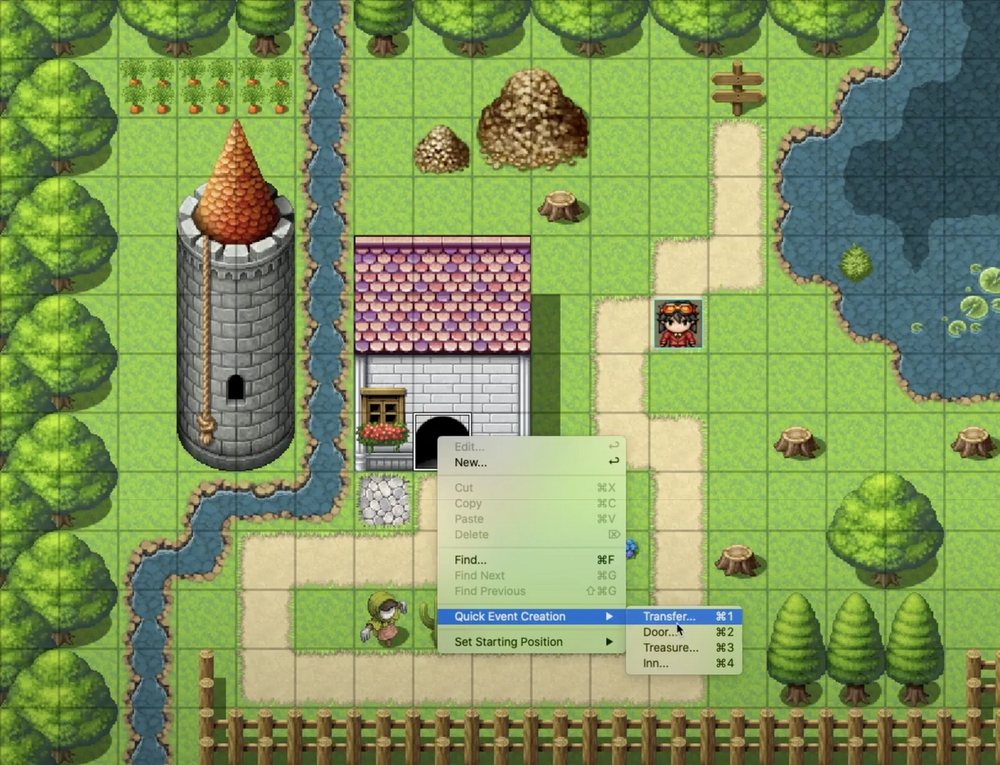
Quick Event Creation is a shortcut that allows you to create a transfer event in just a few clicks!
How?
It’s simple! Just, right click on the tile you want to add the transfer event to, in Event Mode of course. Then, select Quick Event Creation > Transfer…
Now, just select the Location and Direction like we discussed earlier, and then your good to go! Just click ‘OK.’ This shortcut actually automatically adds a sound effect to the event as well, so whenever it's triggered you hear something cool too. Even better!
Doors
If, in your small town, you want to add doors to your buildings, you can do so really easily! All you need to do is select the Door Option from the Quick Event Drop Down Menu. Then, just select the door image to use and the location on the new map (a separate interior map for each building) to transfer to. However, a few other things must be done before you add door
Assignment
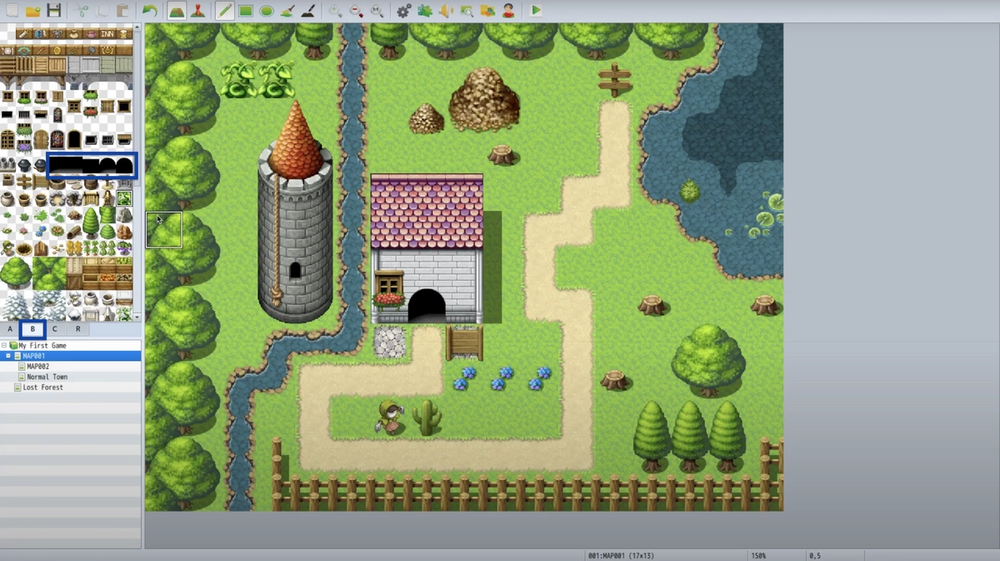
In your small town map, create buildings and add doors to each building. On the buildings, make sure to add the fitting entrance-shadow tile ( image below ), from Tab B of the tile palette, on top of the tile of the building that you are going to add doors to. Then, for each building, create a separate interior map (using the interior tileset) that the doors will transfer the player to.
That's it!
Quick Event Creation is quick and simple and it’ll make game creation a lot faster and easier for you. Be sure to use it whenever you have the opportunity!