Item Selection
This portion is one of the most sought out things in Photoshop. If two things are two far apart, how do I move them closer? Let me show you.
Selecting Ception
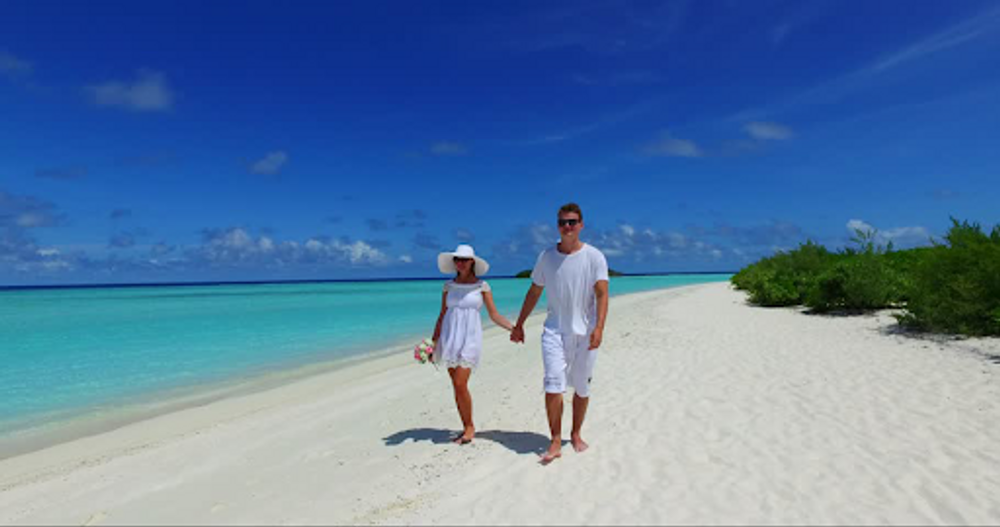
When moving an object, you want to first select your selecting tool. For movement based items, I would encourage the quick selection wand. Not only is this very quick, but in this type of photo accuracy is not that important. The image below is a couple walking on a beach. As you can see, one person is holding flowers while the other is not. Let’s fix that.
Layer Via Copy
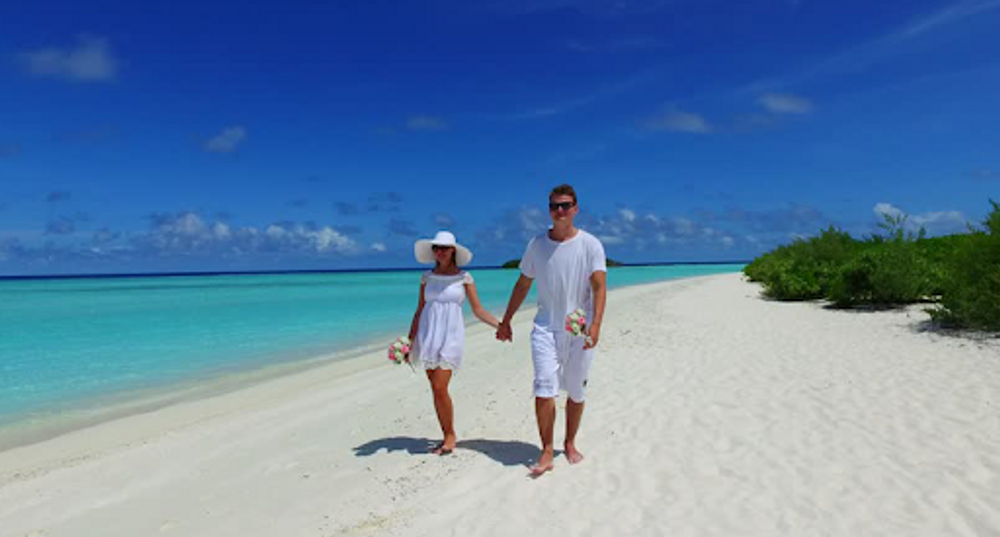
To achieve our goal within this photo we are going to need to create a copy of the picture above. When we do so, we can work on the photo as if it is a layer. Our goal in this photo is to make both people in the photo hold some flowers. Now we can’t just take some flowers from one person and give them to the next. You must quick select around the flowers, and then go to the layer tab, select new, and then select Layer Via Copy. This puts only the small portion (the flowers) on their own layer. You can not actually see the second layer of flowers over the other yet, but if you just move the flowers with the move tool, you can see that it has worked. The image below is the man now with the flowers in his “hand”. This image may have served its purpose for teaching, but it is very unlikely that they both are holding the same amount.
Free Transform
Free Transform is just a fun tool that allows you to do various tasks like distorting an image or turning the image 180 degrees. We use this tool, most of the time, so we can change a part of an image so that it does not look as identical to the next. To activate this feature, all you need to do is select the Edit tab, and then look for the tab called Free Transform. Once this is selected, the part of the image will change and have 8 handles on each side. Once you right-click, a menu of “selections” will show up for all the things you can do. This is how people can change an image from very fake to somewhat normal..