Taking things out of a photo
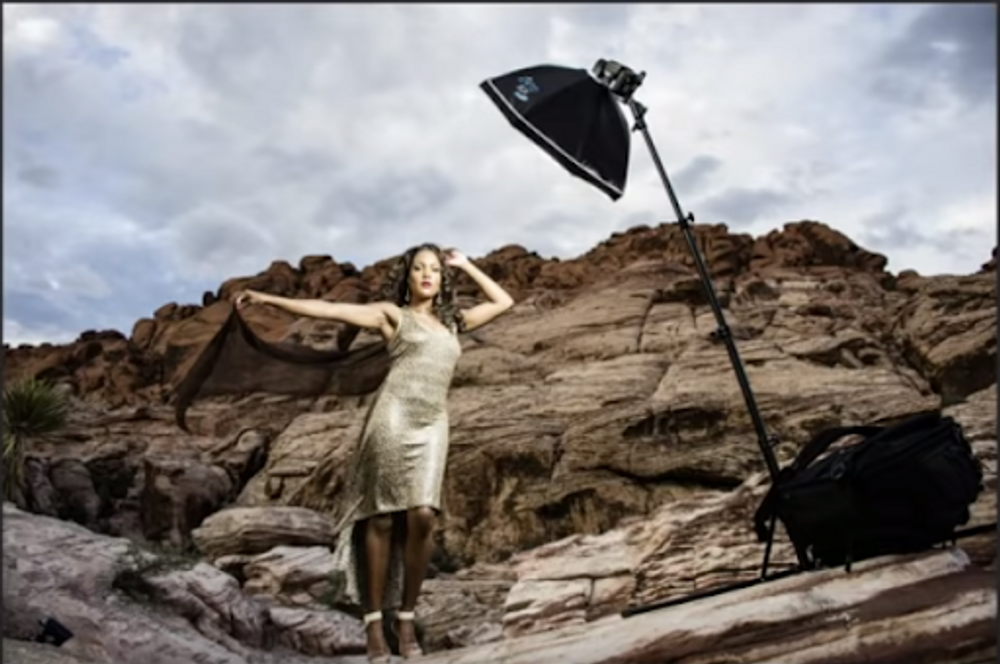
When we take a picture, sometimes things that should not have been in the photo are. A flock of birds fly in, a couple people walk by, and many more things can take away from a photo. There is one big rule in Photoshop, probably the biggest rule of the whole program. You must SELECT to EFFECT. There are possibly hundreds of selection tools embedded in Photoshop so there are many ways to do this. Here we are going to go over the most used and “easiest” tool along with some others. Below is the image that I am going to use. As you can see the picture is very nice, however the lighting was in the way.
Lasso Tool
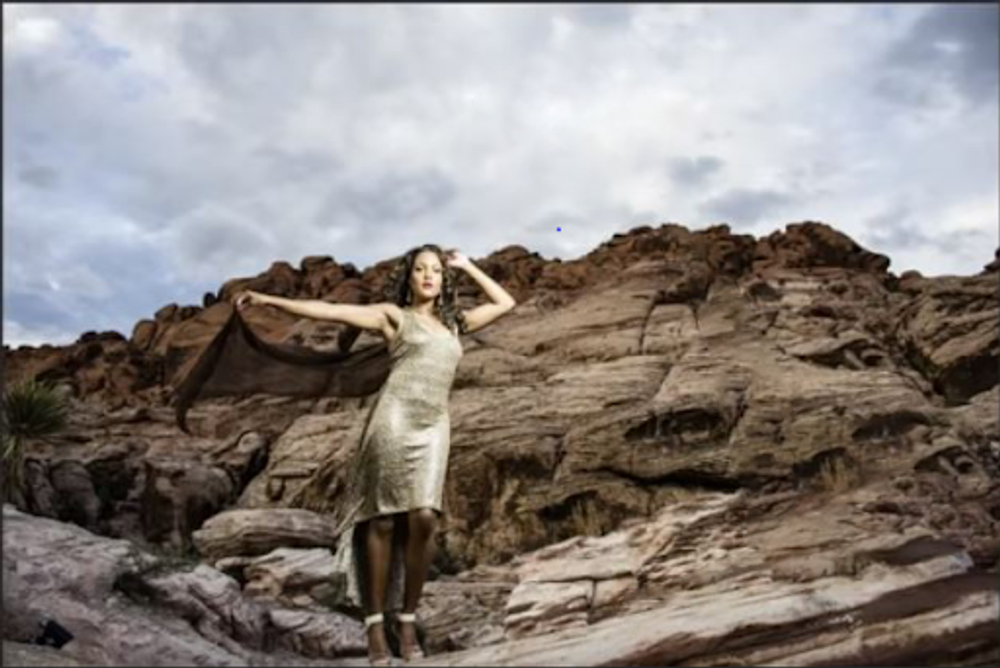
The Lasso Tool is almost like you are using scissors to cut a sheet of paper. Out select the tool, and then trace over the portion you want to select. Once you have completed a full circle or round trip with the tool, you just let go of your mouse. This leaves a dotted line around the whole object(s). Once you have done this, all you need to do is press the delete key on your keyboard. If this image was on a layer, you would use the combination of the SHIFT key and the delete key. If your keyboard, for some reason, does not have a delete key, then simply select the Edit tab, and then select Fill. Fill does the same things that delete does. Once the “Fill” menu has popped up, change the Use to Content-Aware. After this the fill analyzes the picture and fills the image. Below you will see the image after we took out the lighting.
Marquee Tools
There are 4 main Marquee tools when it comes to Photoshop. These tools are the first selection tools ever added into Photoshop and are still somewhat useful. If you need an object to be selected in a perfect square, the rectangular marquee tool is perfect. If you need a perfect circle or oval to cut something out, the Elliptical marquee tool is amazing. The only problem with these tools is that for an object that is not a rectangle or circle, the rectangle clips too much of other outside objects.
Quick Selection Wand
The quick selection wand is probably the best selection tool for things that do not require accuracy. The quick selection wand allows you to select portions of the object by just simply dragging over the areas. Photoshop selects the whole area within the borders of the object , so there will be no spots that don’t get covered. Once the whole area that you want is selected, just hit delete on your keyboard and follow through.