Making a new project
First, select the Create New option. Now let’s add our models for the skincare brand.
In the Models section in Starter Assets scroll downwards until you find the model labeled Twist Jar. Drag and drop this model into the center of the dark grid lines.
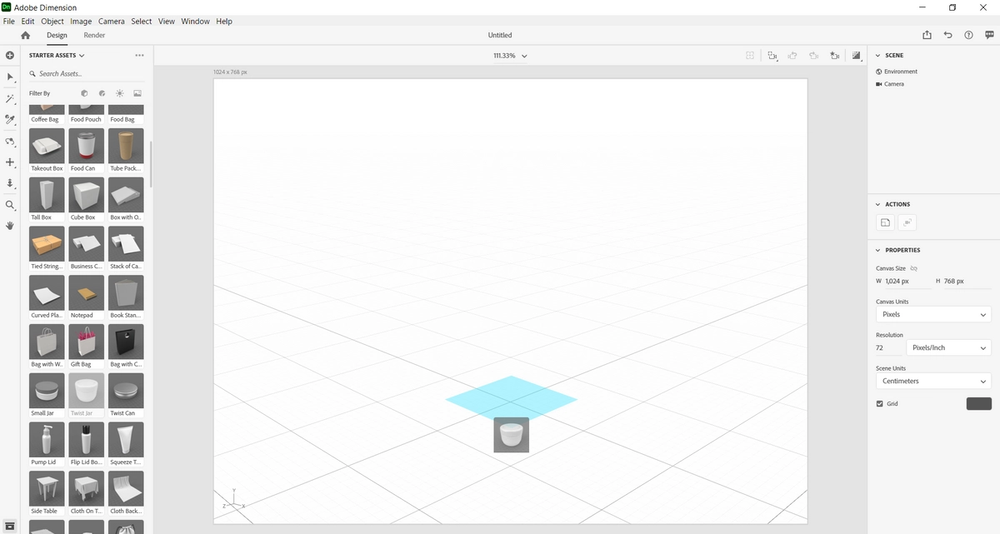
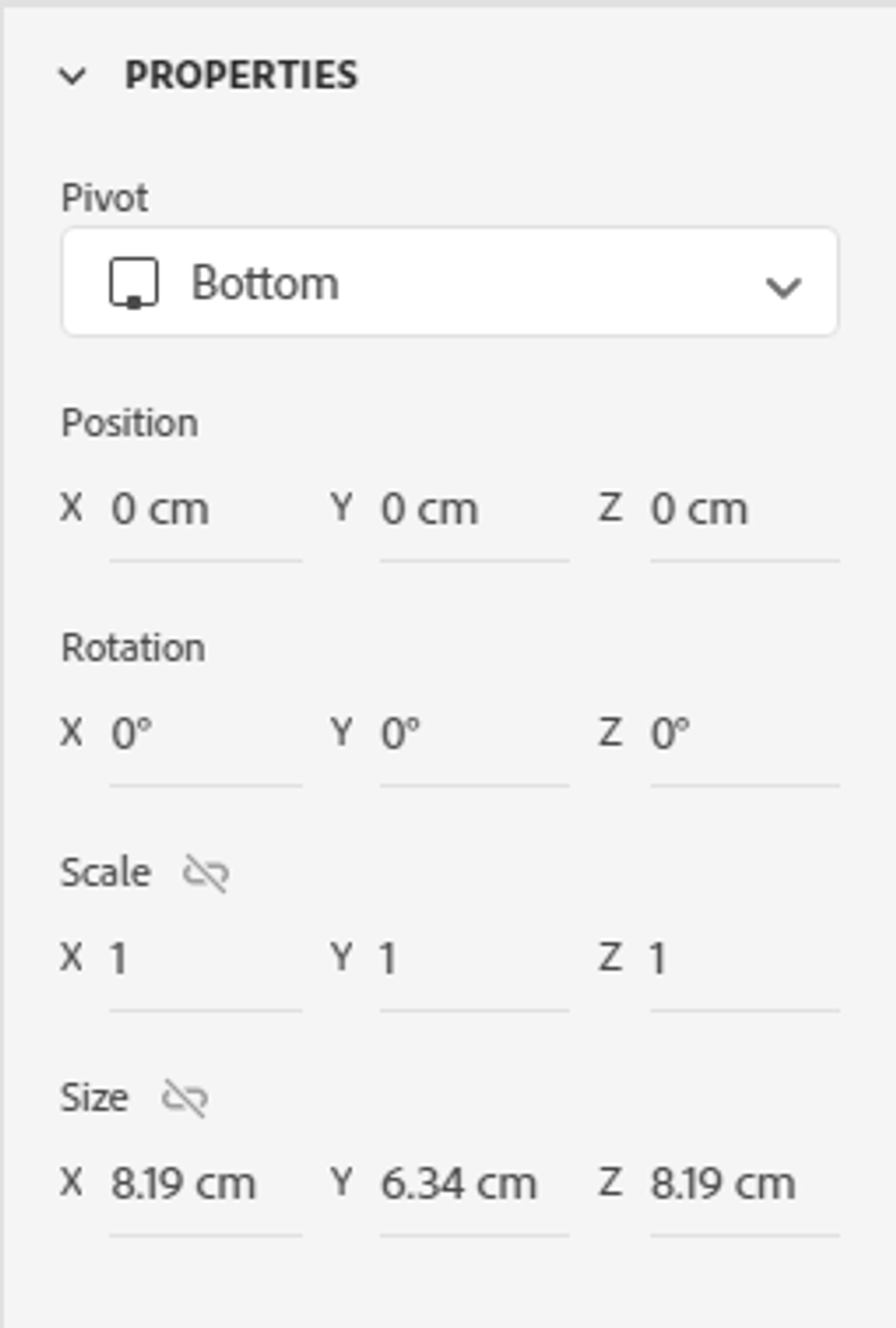
To set the twist jar exactly within the center of the grid, make sure the X, Y, and Z values located under the Position section in Properties are all equal to zero, as shown below.
Now let’s add the other models.
In the Models section in the Starter Assets scroll downwards till you find the model labeled Pump Lid.
Drag and drop this model to the left of the twist jar.
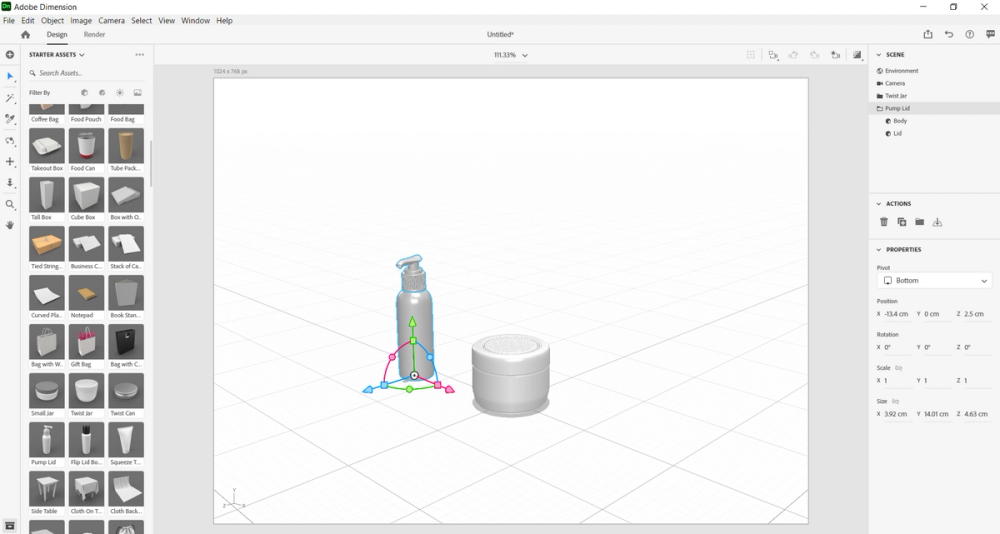
Currently, the Pump Lid looks a little far from the twist jar.
With the Pump Lid selected, change the values in the Position section in Properties to X= -9.9 cm, Y= 0 cm, and X= 2.5 cm.
Lastly, let’s add one more model.
In the Models section in the Starter Assets scroll downwards till you find the model labeled Squeeze Tube.
Drag and drop this model to the right of the twist jar.
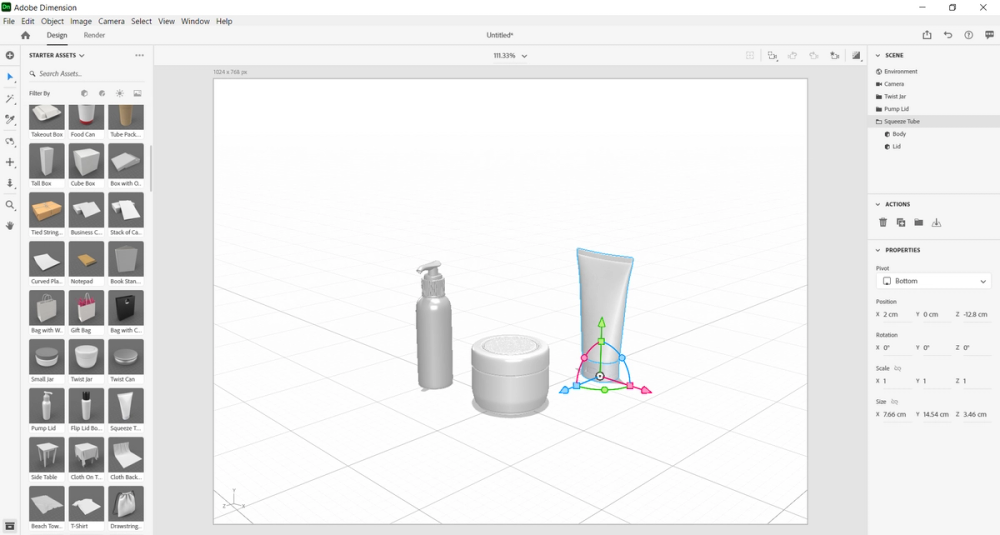
Let’s change the orientation of the tube before we change the position of it.
Hover over the circles, as shown in the image above, until you come across one labeled Rotate Y. Drag this circle to the right until the degree reads 45.
Now, with the squeeze tube still selected, change the values in the Position section under Properties to X= 2 cm, Y= 0 cm, and Z= -10.3 cm.
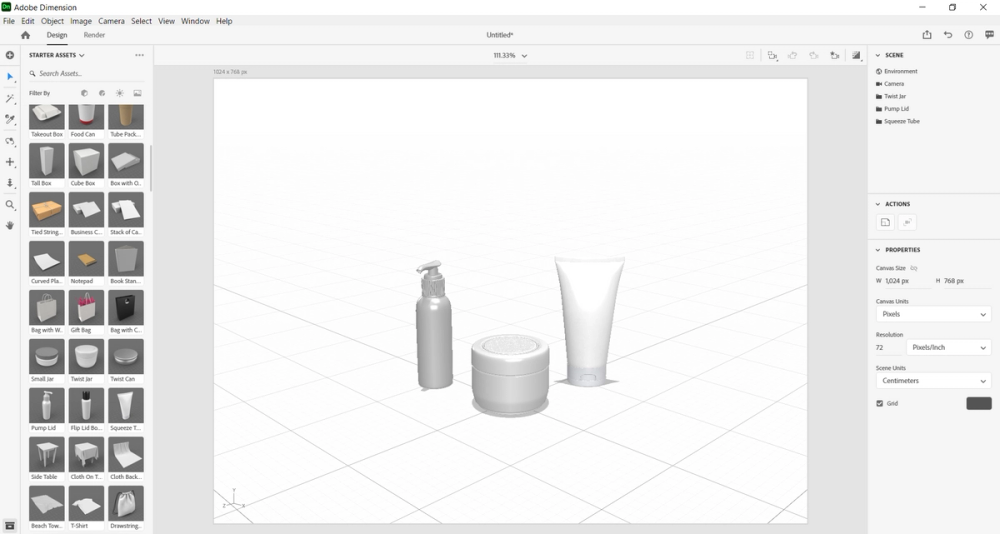
Next, deselect by clicking into any empty space. Our models look great, now let’s alter the materials.