Adding models
First, let’s add a model to our canvas.
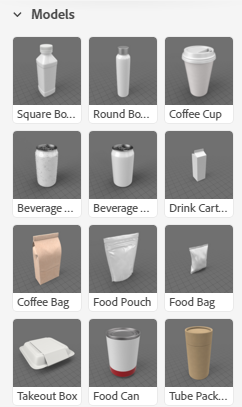
In the Starter Assets section located at the left side of the screen, look through the Models options until you see the model labeled Coffee Bag.
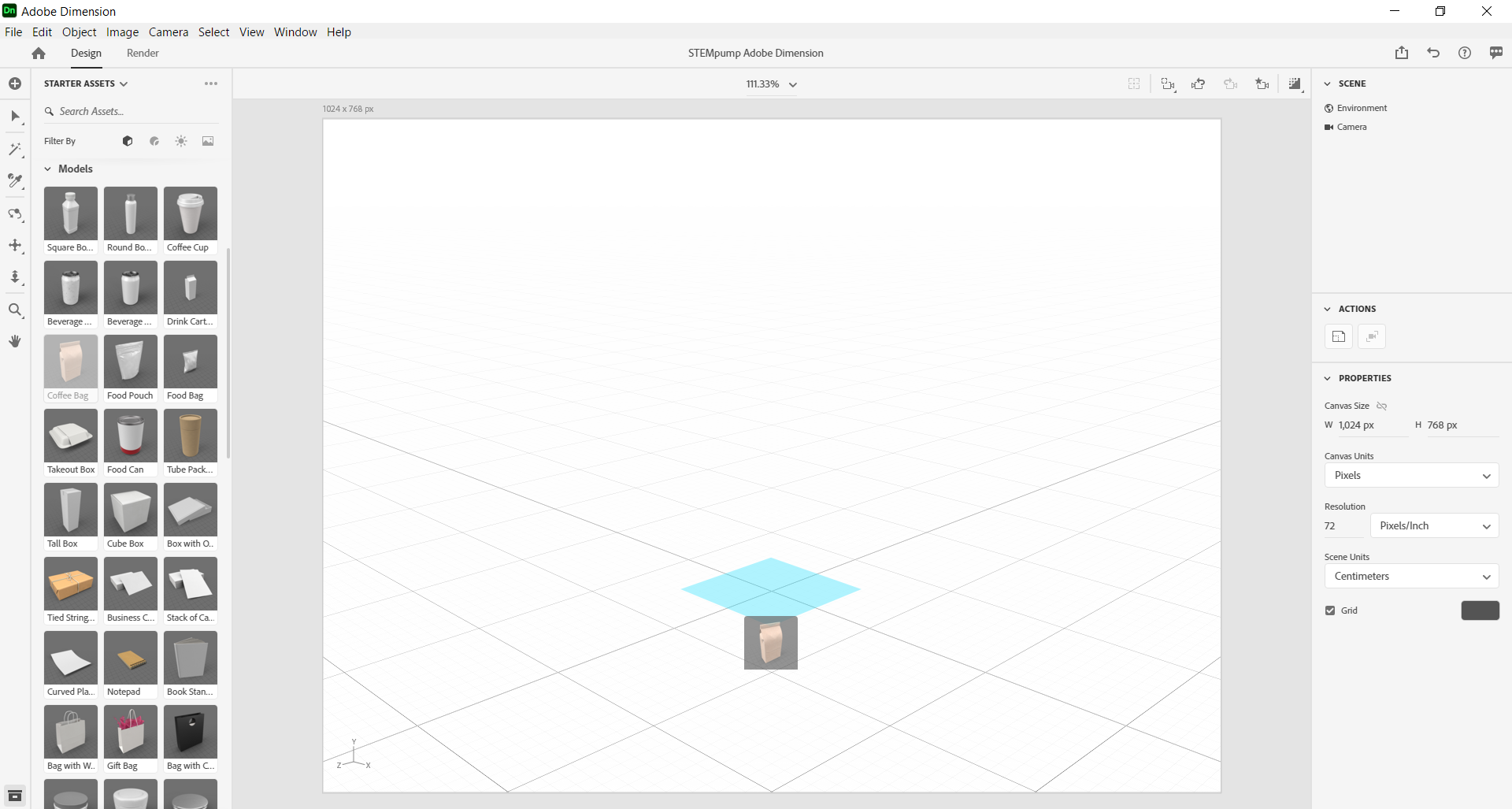
Choose this option and then drag and drop the coffee bag in the center of the dark intersecting lines of the grid as shown below:
Now that you have dropped your coffee bag into the canvas, a set of axes that look like this will appear.
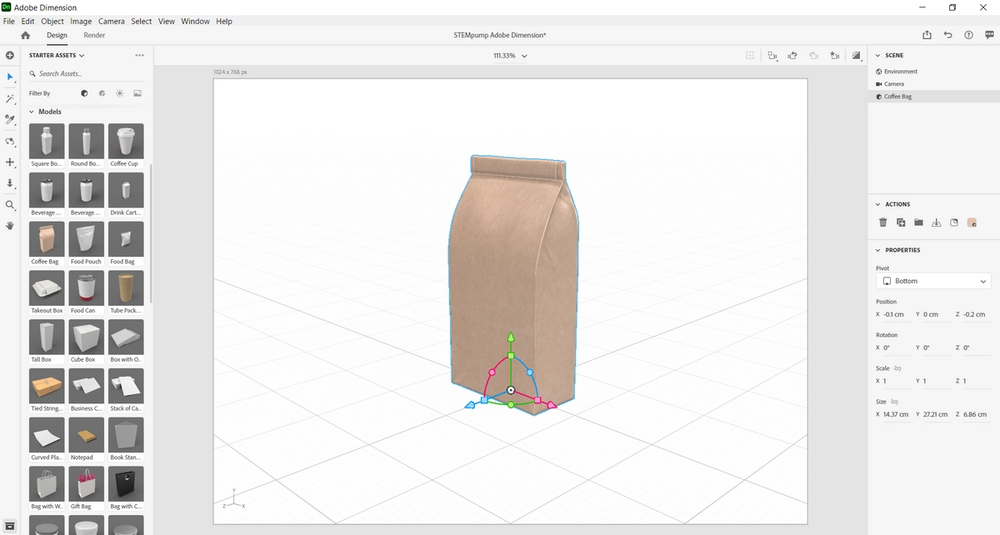
When you hover over the axes you will see names of scales appear, if not you are able to use the ZYX scale located at the lower left hand side of the canvas for reference.
When hovering over the squares on the axes use Scale X to alter the length of the bag, use Scale Z to alter the width of the bag, and use Scale Y to alter the height of the coffee bag.
When hovering over the circles on the axes use Rotate X to rotate the bag to lean forward and lay on its front or lean backward to lay the back of the bag flat.
The Rotate Z option is used to alter the angle in which the sides of the bag lay, and the Rotate Y option is used to change the orientation of the part of the bag that is facing you.
When hovering over the arrows located at the end of each axis, use Move X to move the object to the left or right, the Move Z option to move the bag forwards or backwards, and the Move Y option to move the bag upwards or downwards.
If you accidentally moved one of the scales and would like to undo the transformation, simply select Edit and click on Undo.
Altering the orientation size
Let’s make the coffee bag face us.
First, click and drag the circle labeled Rotate Y option slowly to the right until the Y axis reads 45°.
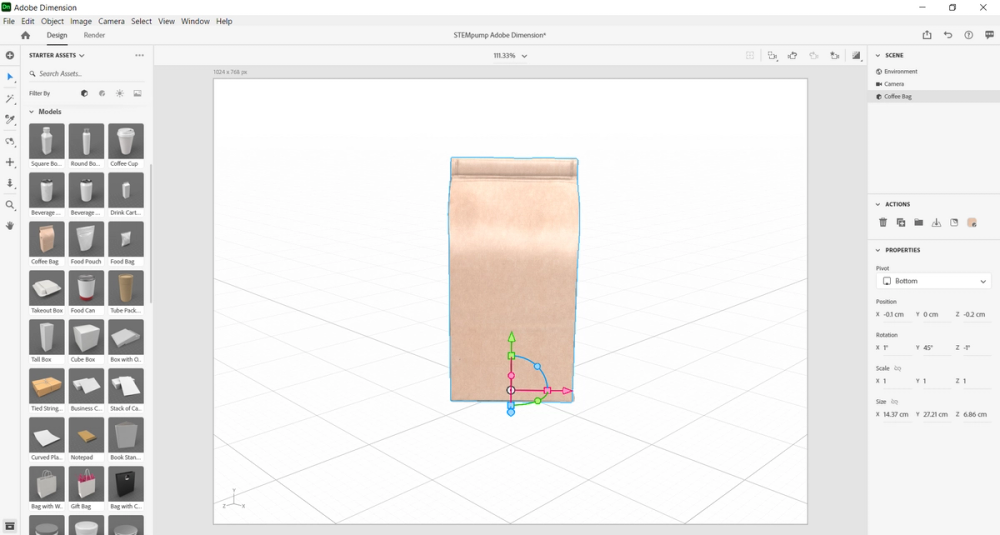
As you can see while you drag, Dimension also adjusts the places in which lighting hits the bag as you alter it.
Now let’s use the Scale X square and drag it to the right until the X axis reads 110.0% on the canvas.
Next, click off into any open space to deselect the bag.
Now that you have learned how to alter the size and orientation of an object in Dimension, let’s move on to the next lesson.