How to use Dimension
If you followed all of the steps appropriately you should be viewing this page:
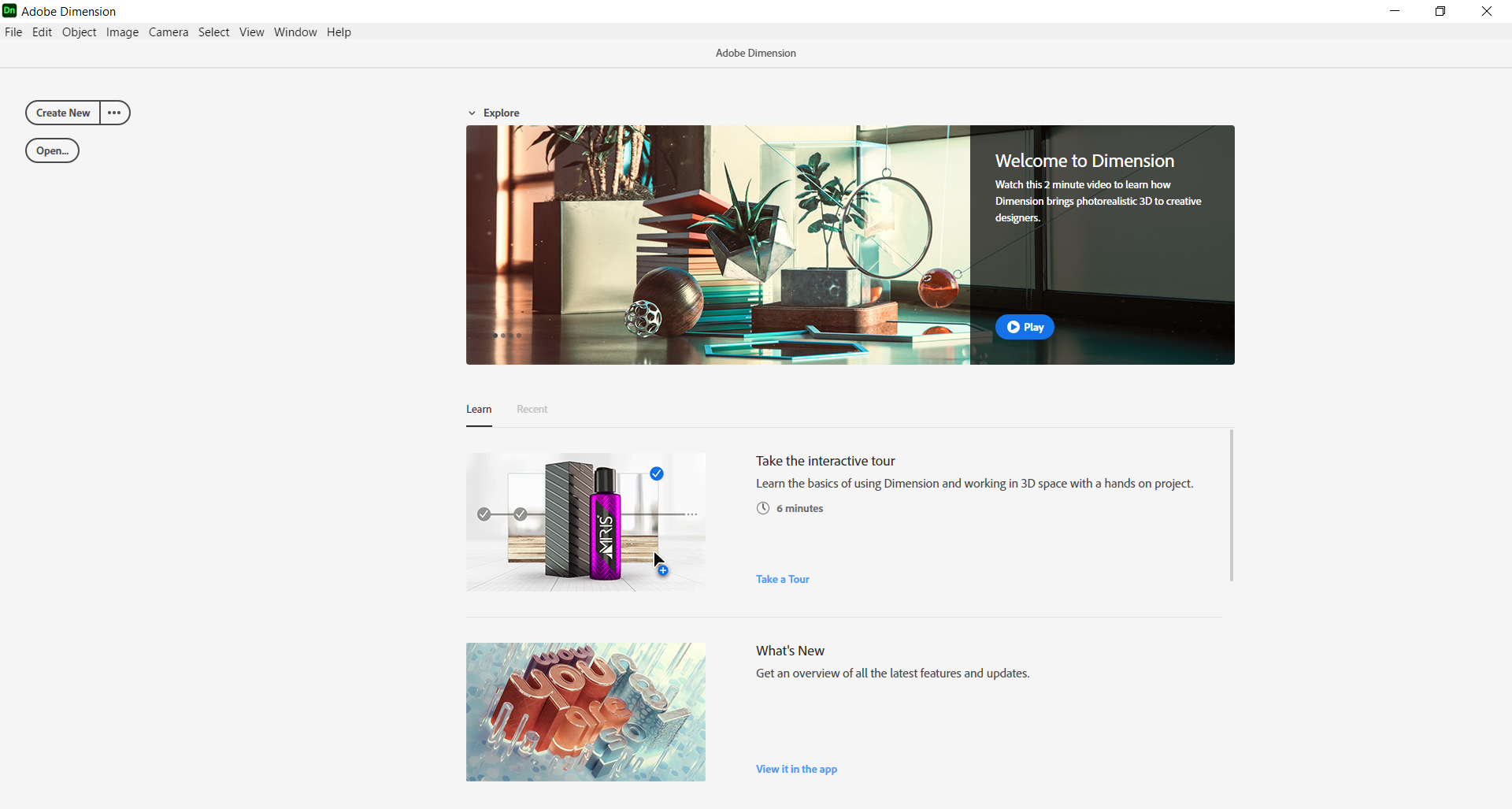
File
To create a new file, open a file, save, import, export, share, or close Dimension, choose this option.
Edit
To undo, redo, cut, copy, paste, duplicate, and delete select this option.
Object
To group, ungroup, lock, unlock, hide/show selected objects, hide/show unselected objects, move to ground, drop to ground, align and distribute, align to secure, convert to standard model, or generate UVs, then select this feature.
Image
To resize the canvas or match the image, choose this option.
Camera
To undo/redo the camera, frame, switch to home view, switch to current view, or switch to bookmarks, select this feature.
Select
To select all, deselect all, or do an inverse selection, choose this feature.
View
To alter the zoom, toggle grid, or alter the Gizmo size, select this option.
Window
To minimize, switch the mode, show/hide the render preview, show/hide the content panels, or show/hide the tool options, click on this option.
Help
To view what is new in Dimension, get help, give feedback, take a survey, learn more, view updates, view system requirements, take a tour, or look at tutorials, then select this option.
Create New
To open a new file, use this feature. If you would like to alter the canvas size, resolution, or the units choose the three dots located next to the button.
Open
To open a file or image, then choose the Open feature.
The home page is filled with tours, tutorials, and more, and for this lesson let’s select the option labeled Create New.
Now that you have learned about all of the options located on the home page and created a new file in Dimension, let’s get started!