Dimension Options
Now you should be looking at this screen:
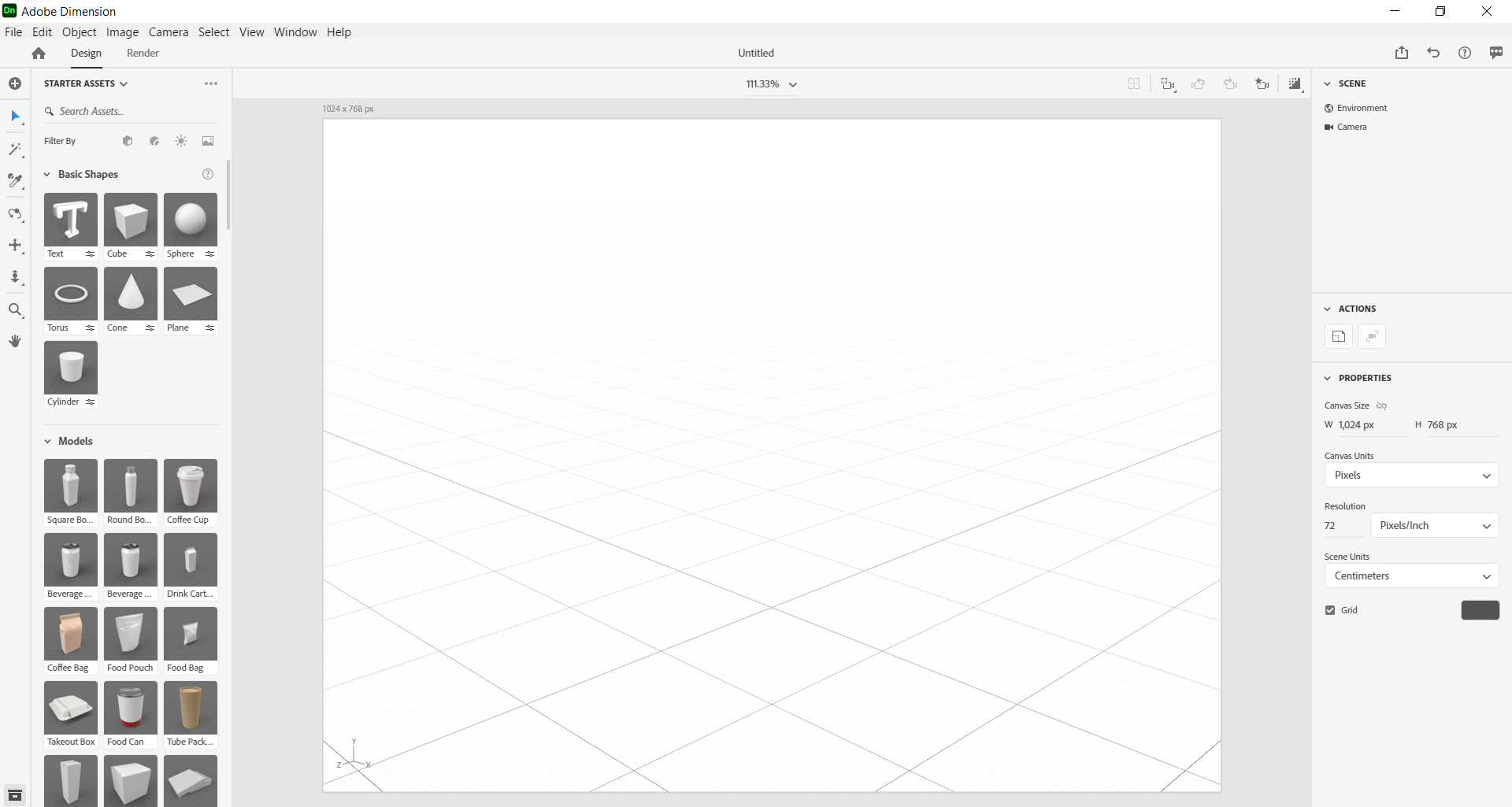
Before we move on, take a look at the side bar located on the leftmost portion of the screen.
Plus Sign
Use this feature for import, export, view the starter assets, or open Adobe Stock.
Select Tool
Use this tool to select the object and give it a 3D transformation.
Magic Wand Tool
This tool allows you to select parts of an object.
Sampler Tool
This feature is used to sample and apply different textures, materials, and colors to objects.
Orbit Tool
To view your object from different angles or rotate your camera, choose this feature.
Pan Tool
To move the camera up, down, left, or right, choose this option.
Dolly Tool
To move the camera forward and backward, select this feature.
Zoom Tool
To alter the zoom and move in and out of the canvas, select this option.
Hand Tool
If you would like to move the canvas up, down, left, or right, use this option.
Starter Assets
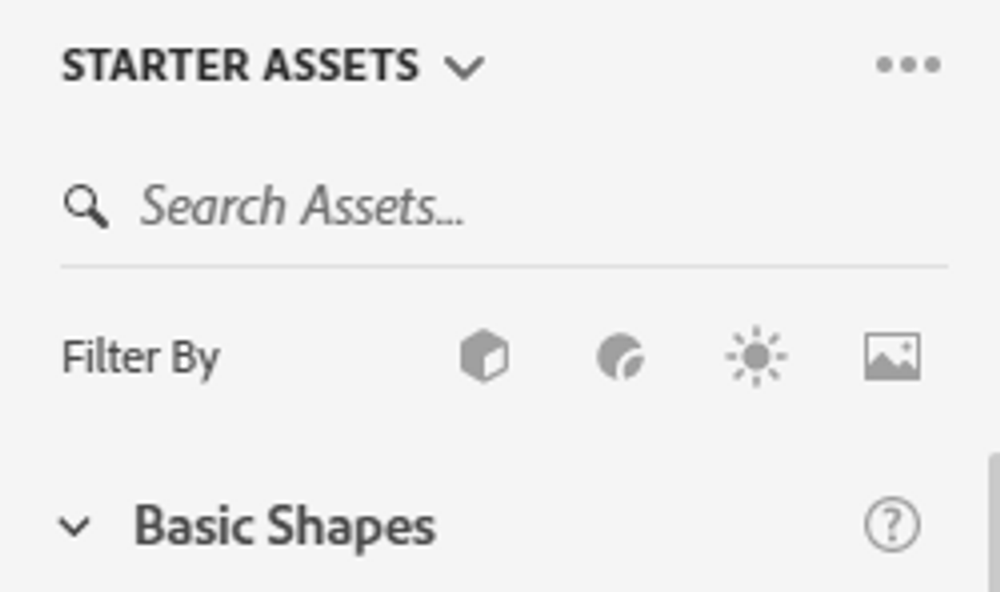
Models
If you would like to view the models that are in Dimension, choose this option.
Materials
If you would like to view the variety of materials and textures such as glass, gelatin, wax, etc. select this feature.
Lights
To alter the lighting of your workspace, click on this option.
Images
To alter the background or environment of your workspace, use this feature.
Now let’s look at the options located on the right side of the screen.
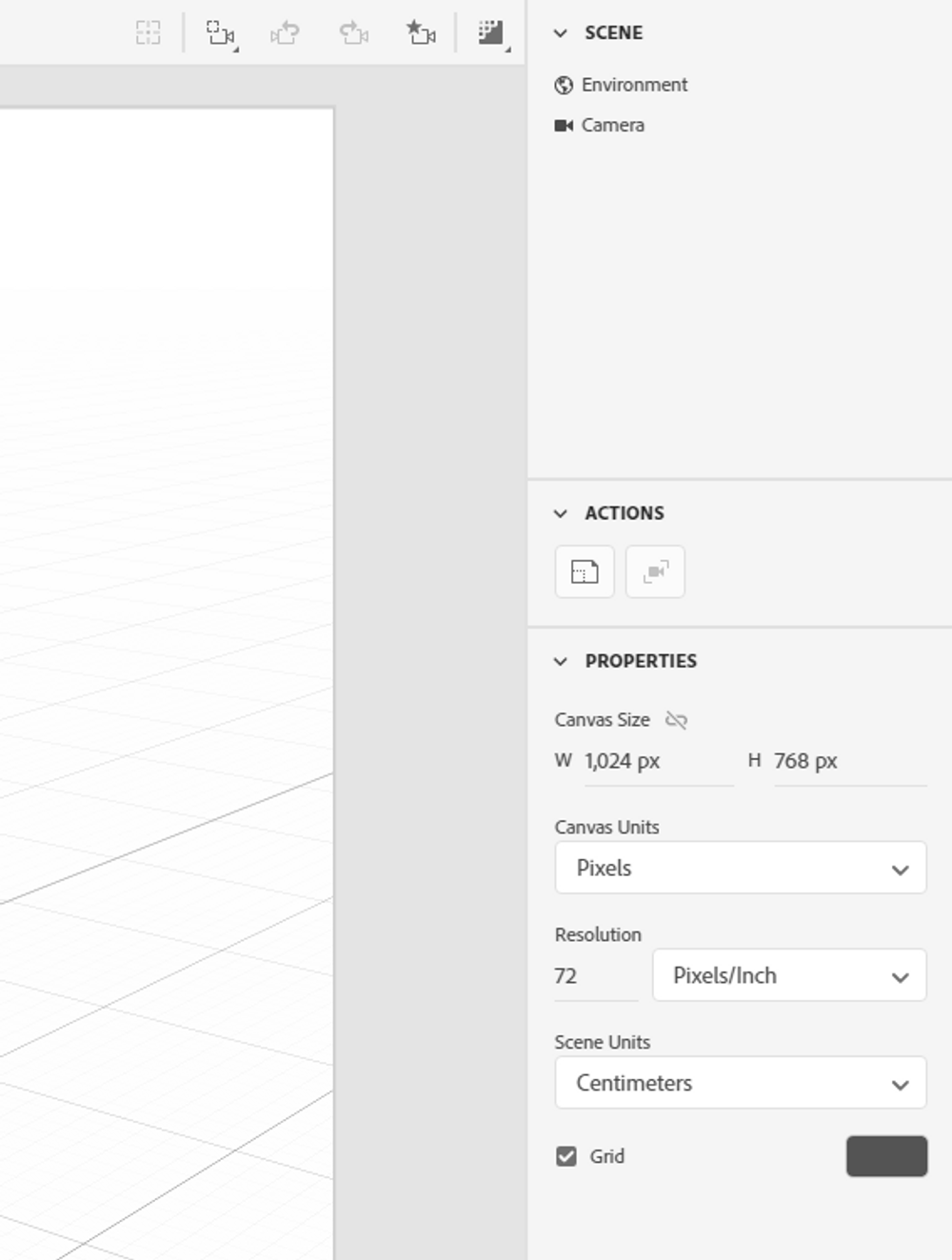
Toggle Focus Preview on Canvas
By choosing this option you are able to preview the focus blurring effect.
Frame Selection
This option moves the camera so that the selected area is viewable.
Camera Undo
To move the camera angle to a previous angle use this feature.
Camera Redo
If you accidentally hit Camera Undo and wanted to revert back to the camera angle you were on, choose this feature.
Camera Bookmarks
In this space you can look at saved camera views.
Show/Hide Render Preview
This option gives you insight into what your final product will look like with the lighting, materials and textures, and shadows chosen.
Scene
In this section, each of the objects and parts will appear.
Action
In this section, you are able to edit the canvas or resize a selected object to match the background image.
Properties
Here you are able to alter the canvas size, units, and resolution. If you would like to add or remove the grid, you can find this option here too.
Now that you have learned about all of the features located in Dimension let’s start creating!###