Adding a background
First, select the image icon located in the Starter Assets and look through the background options until you see this image, and then select it:
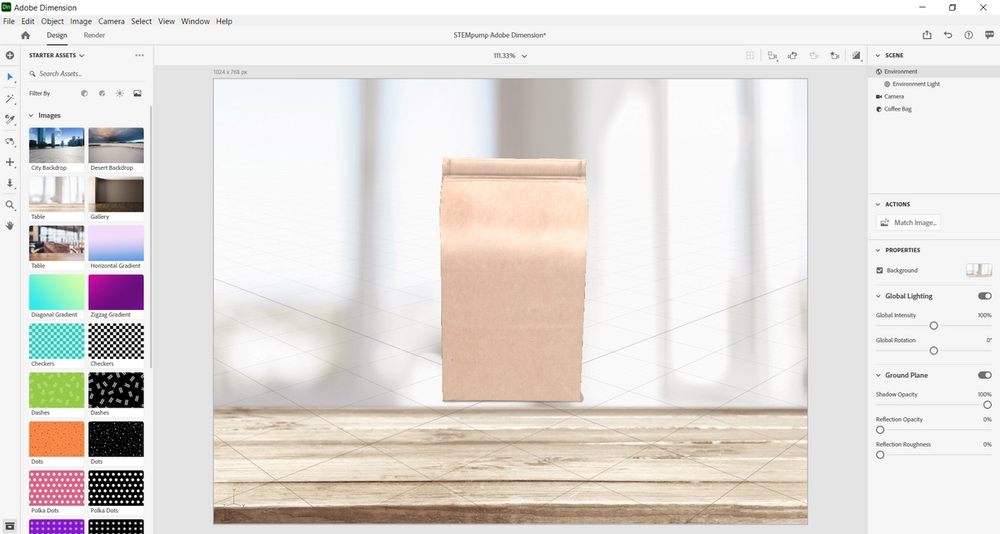
Right now the background does not look like it fits correctly with the coffee bag, in order to fix this select the Match Image… option located in the Actions section on the right side of the screen. Then after everything alters click OK.
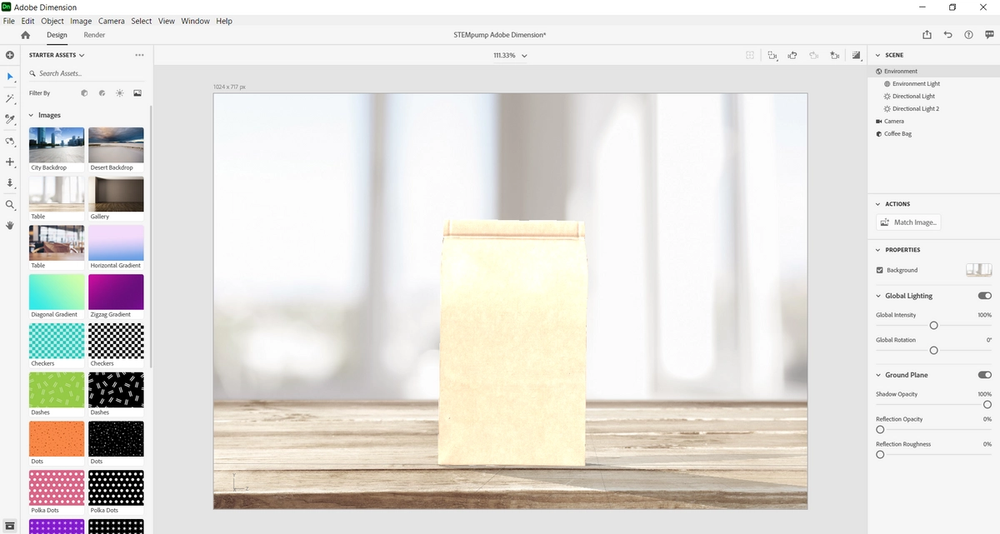
As you can see the lighting does not look appealing on the coffee bag, to adjust this select Directional Light 2 and adjust the intensity to 100%.
Adding a Directional Light
First, select the sun icon located in the Starter Assets section and then look through the options in the section labeled Directional Lights.
Next, select the lighting labeled Sun.
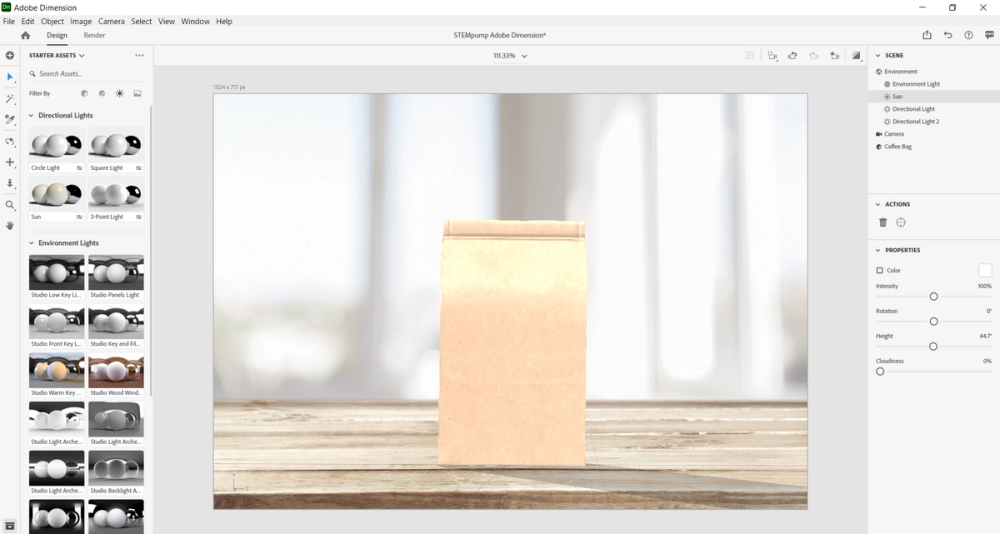
If it is not already selected, click on Sun in the Scene section, and then adjust the intensity to 20%.
Lastly, let’s return back to Directional Light 2 and lower the intensity to 70%.
Now let’s add some text and customize our bag.