Getting started
To get started, click on the button with the plus sign located on the left side of the screen, and then select the option “Instagram Post”.
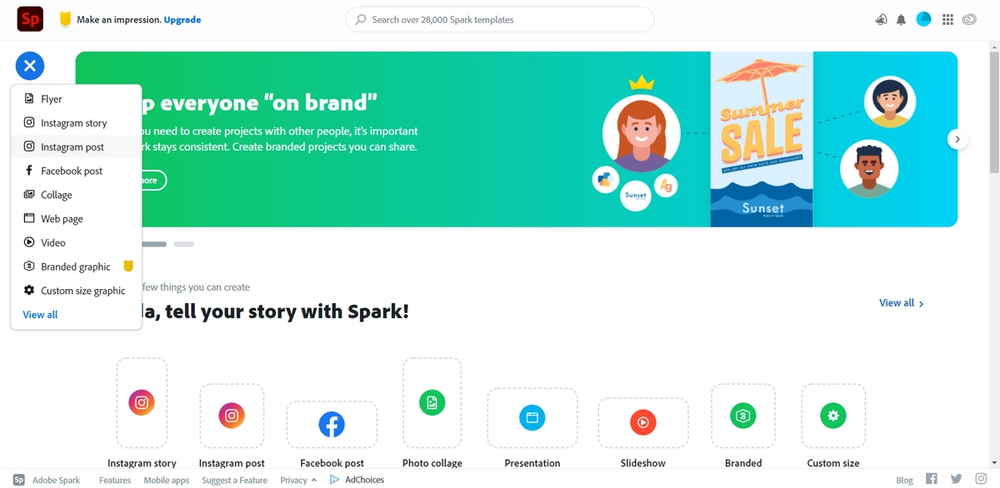
For this lesson we will be creating an Instagram post for a new event that the Technology Club is hosting.
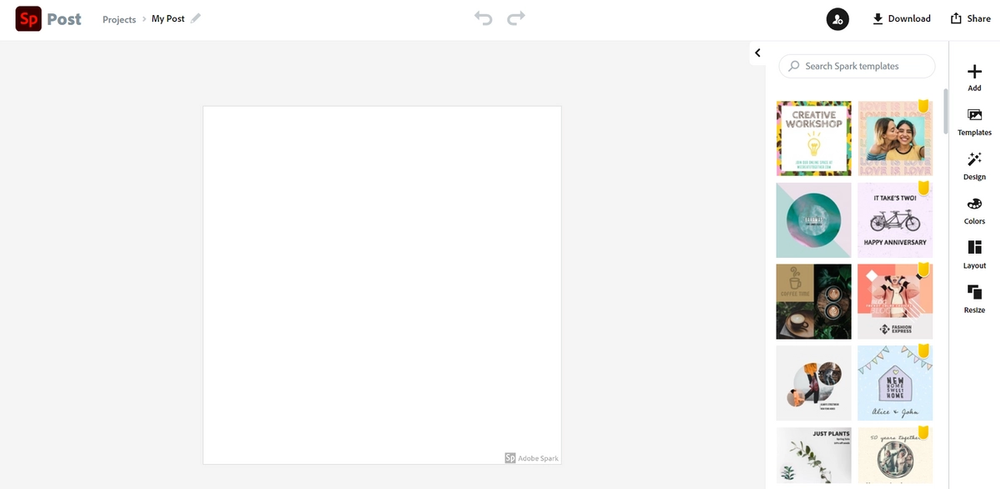
First, let’s learn about the features located on the right portion of the screen.
Add
Use this feature to add text, photos, icons, or logos to your post.
Templates
Use this feature to select a template from a large variety of options.
Design
Use this option to add content from your brand and view different variations.
Colors
To view the wide range of colors and shades that are available, select this option.
Layout
To choose a layout and alter the border thickness, select this feature.
Resize
Use this option to browse through the different social media options ranging from Instagram Stories to YouTube Thumbnails. You can also view print, social profile, and standard options also.
Now that you have learned about the different features, let’s start creating our post.