Getting Started with Web Design
You can find the web page option by clicking “Web page” on the dropdown menu. Another way to find the web page option is to select the “View all” button on the home screen.
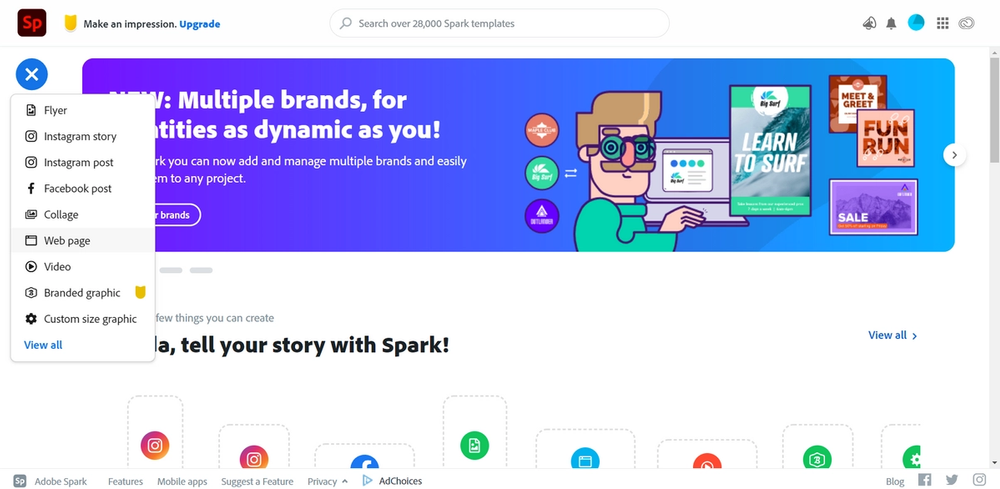
Designing a web page
If you followed all the steps appropriately then you should be seeing this screen. For this lesson we will be creating a web page on a Technology Club.
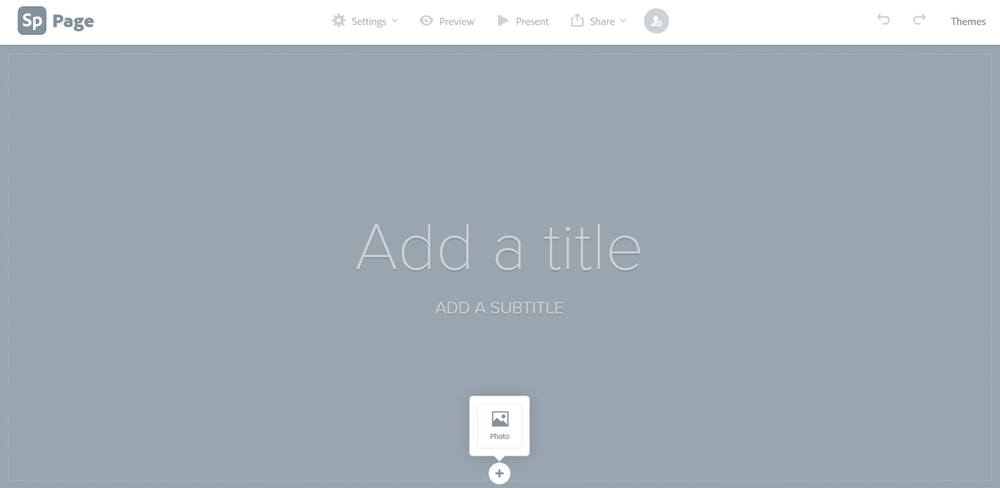
First, let’s add some text to our web page. Type “Technology Club” in the “Add a title” space.
In the “Add A Subtitle” space, write “In this club we learn about innovation, robots, coding, and more!”.
Your screen should now look like this:

At this point the web page is looking a little plain, let’s add a photo.
Adding a photo
Towards the bottom of your screen, you should see a small button with a plus sign. Click this and an icon of “Photo” will appear.
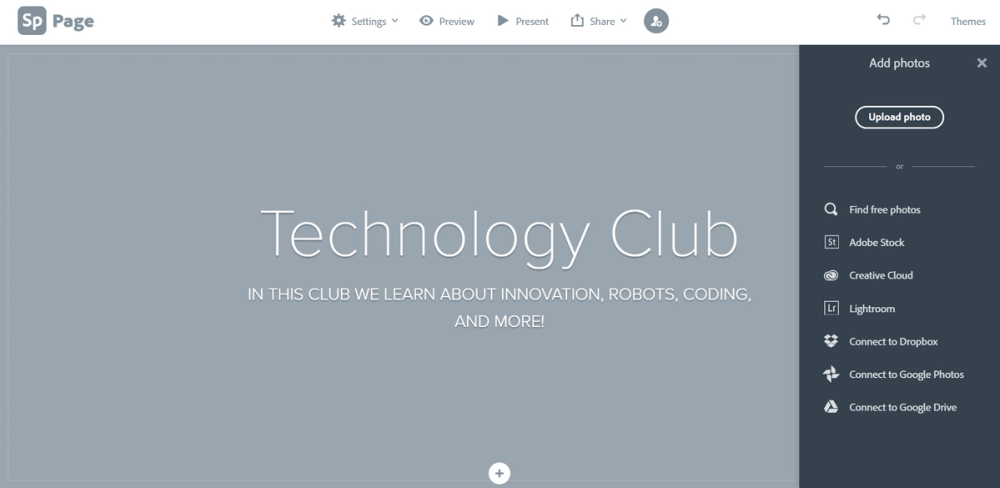
Click the “Photo” option and a menu of options will appear on the leftmost side of your screen.
The Add photos menu
Upload photo
By selecting this option you are able to choose a photo from the files in your computer and upload it.
Find free photos
Using this option you are able to select through thousands of free photos. To use this option simply type a keyword into the search bar after selecting the “Find free photos” option and if matching or similar results are available then they will appear.
Adobe Stock
Through Adobe Stock you can search for any royalty-free media, whether it is stock photos, videos, audio clips, etc. However, before using any of these options you must pay a fee so you can use the media.
Creative Cloud
By selecting this option you may use any file that you have on Creative Cloud.
Lightroom
This option allows you to select any photo located in your Lightroom Library, which was edited using Adobe Lightroom.
Connect to Dropbox
If you would like to use a photo or file from Dropbox, then use this option.
Connect to Google Photos
If you would like to use a photo from your Google Photos use this option.
Connect to Google Drive
If you would like to upload a photo or file from your Google Drive onto the web page then use this option.
Now that you have learned about these menu items, let’s get back to the web page!