Adding a video
To add a video to the web page, follow the steps below:
-
First, select the button with the plus sign under the text you added.
-
Next, click on the option labeled “Video”.
For this course you will be using one of our own videos from the STEMpump YouTube channel! Here the link to the video is above.
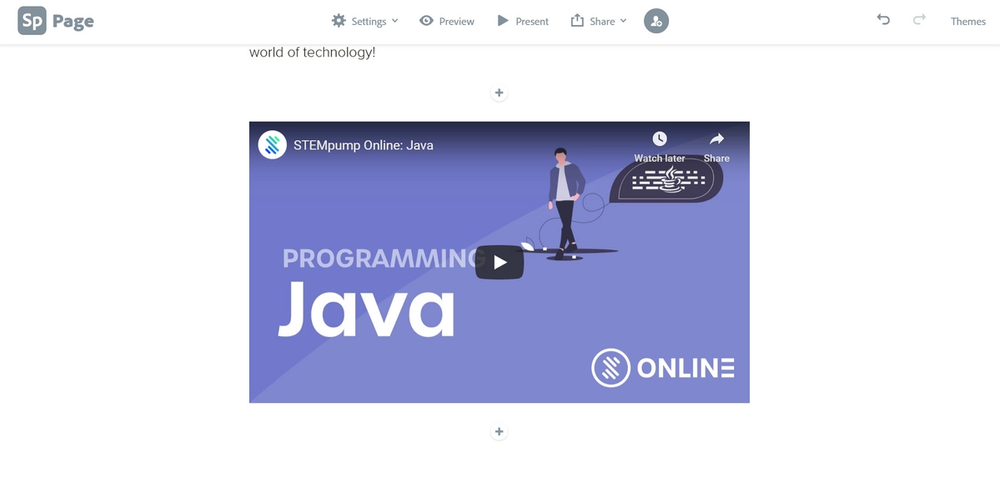
If you accidentally followed the steps incorrectly, click on the video and the “Edit” and “Delete” options will appear. Choose the “Edit” option to alter the URL and the “Delete” option to redo or remove the video.
Let’s add a button!
Adding a button
-
First, select the button with the plus sign under the video you added.
-
Next, click on the option labeled “Button”.
-
In the “Button text” space, you will type “Check out this YouTube channel for cool content!”.
For the link we will be using a link to the STEMpump YouTube channel, which is also above.
Below the space for the URL, there is a section labeled “Alignment”.
For this lesson we will be selecting the middle, or second, option to align the button in the center of the space.
The first option will align the button on the left side and the third option will align the button on the right side of the webpage.
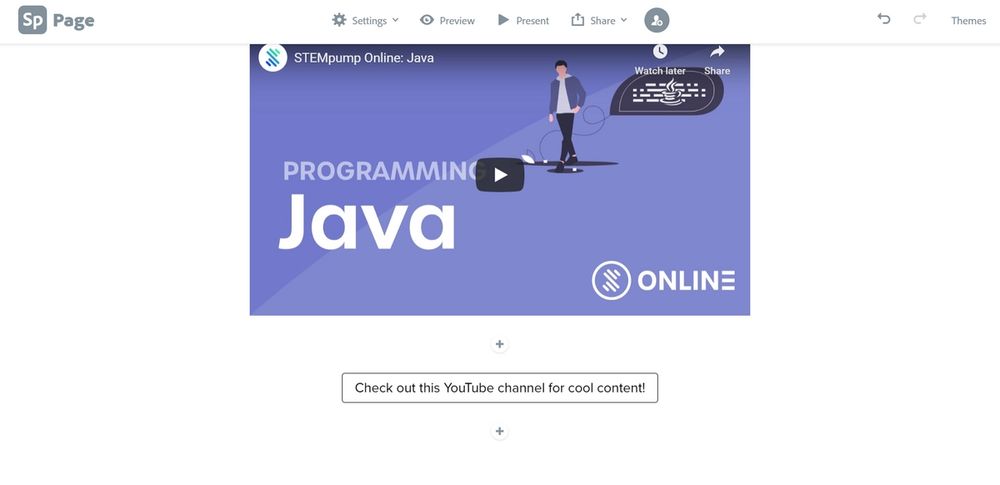
If you accidentally followed the steps incorrectly, click on the button and the “Edit” and “Delete” options will appear.
Choose the “Edit” option to alter the text, URL, or alignment and the “Delete” option to redo or remove the button.