Adding a Template
-
First, select the button labeled “ Templates” and type “event” in the search bar.
-
Select the following template:
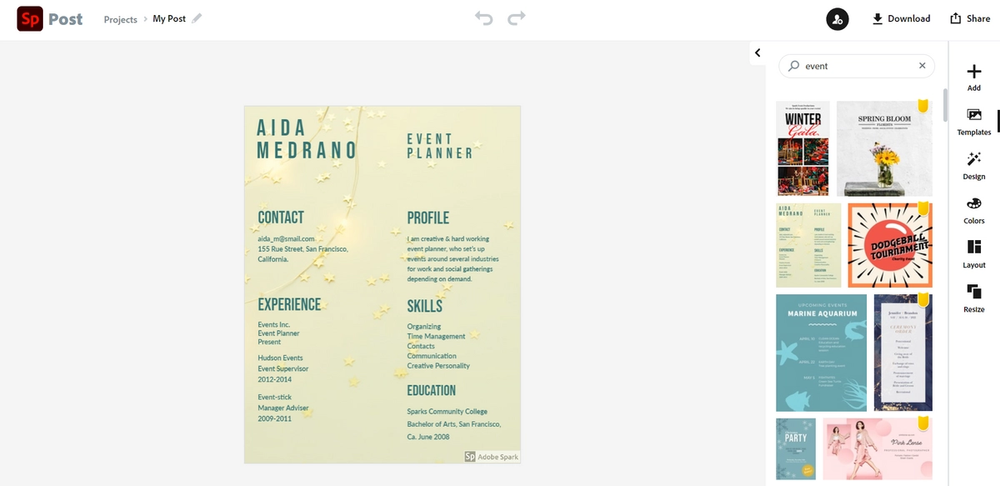
- Then, click on the button labeled “create”.
If you were not able to find the template make sure that “Instagram” is not being used as a keyword in the search for templates.
Changing the Background
-
First, let’s choose a more appropriate background for the Technology Club’s event.
-
Click on a part of the background and multiple options will appear, then select the “Replace” option.
-
Next, type “microphone” in the search bar and select the photo below:
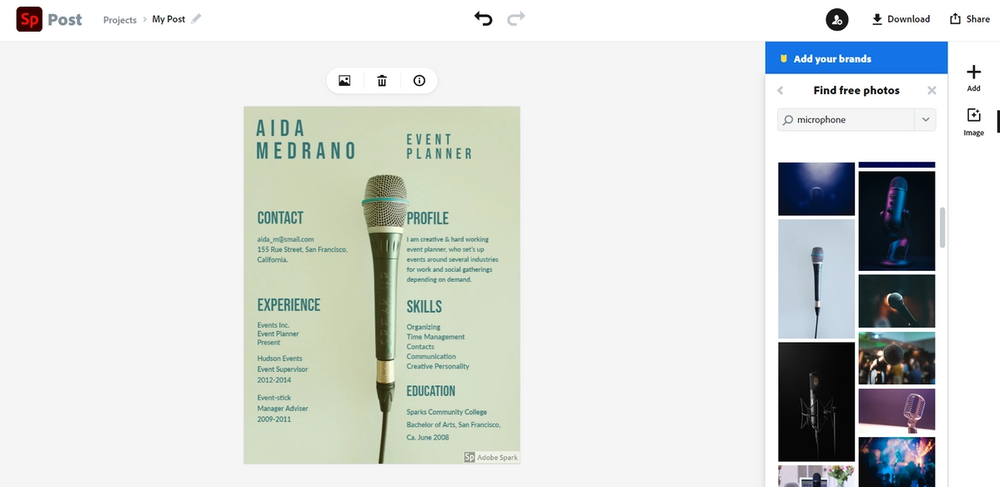
Now we are going to adjust the background. To do so, simply select the background and click the button labeled “Move freely”. Drag the corners of the image to make it bigger or smaller. Adjust the image until the microphone is in the middle of the post.
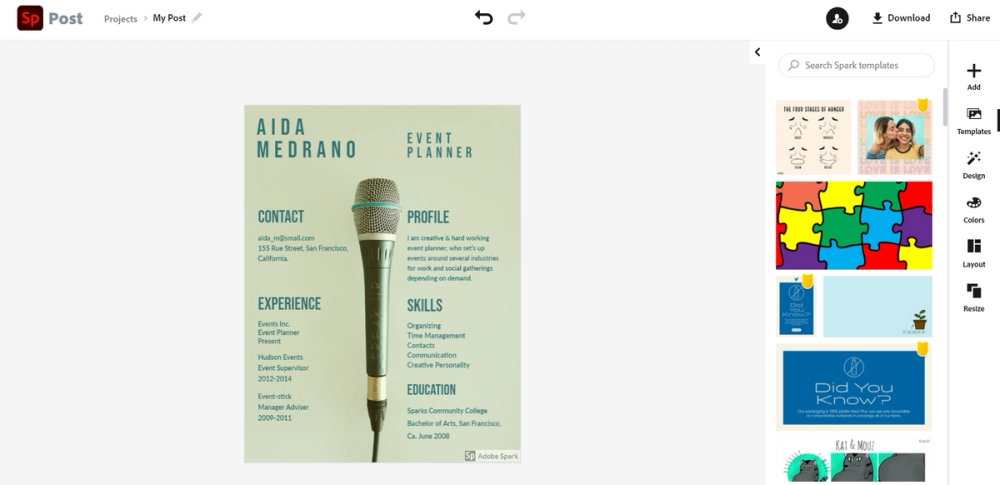
Before we alter the text, let’s learn about the background features:
Opacity
Use this feature to alter how opaque or transparent the image appears.
Order: if you would like to change the order in which each text box or image appears; the higher the order number is, the more forward the image moves.
Flip
If you would like to flip the image to a horizontal or vertical orientation, use this feature.
Crop
If you would like to cut down the image, use this feature.
Shape Crop
Use this feature to crop out a certain shape out of the selected image.
Pin to background
If you are using the “Move freely” option, use this feature to pin the image back onto the background.
Remove background
If you would like to completely get rid of the background, use this feature.
Replace
If you would like to put another image in place of the selected image, use this option.
Now that you have learned about background features let’s move on to text.