Modify Tool
The modify tool is found on the main toolbar with an icon of a surface and an arrow that's pointing up.
The first variation of the modify tool is the Push/Pull tool.
The Push/Pull tool is one of the main tools in the SketchUp programs that makes 2D sketches created in the workspace become 3D models. To make a 2D drawing become 3D, click on the face of the 2D model and either push or pull the face to make it a 3D figure. This will either add or subtract volume from the figure. The Push/Pull can also be used on faces of 3D figures to modify the design.
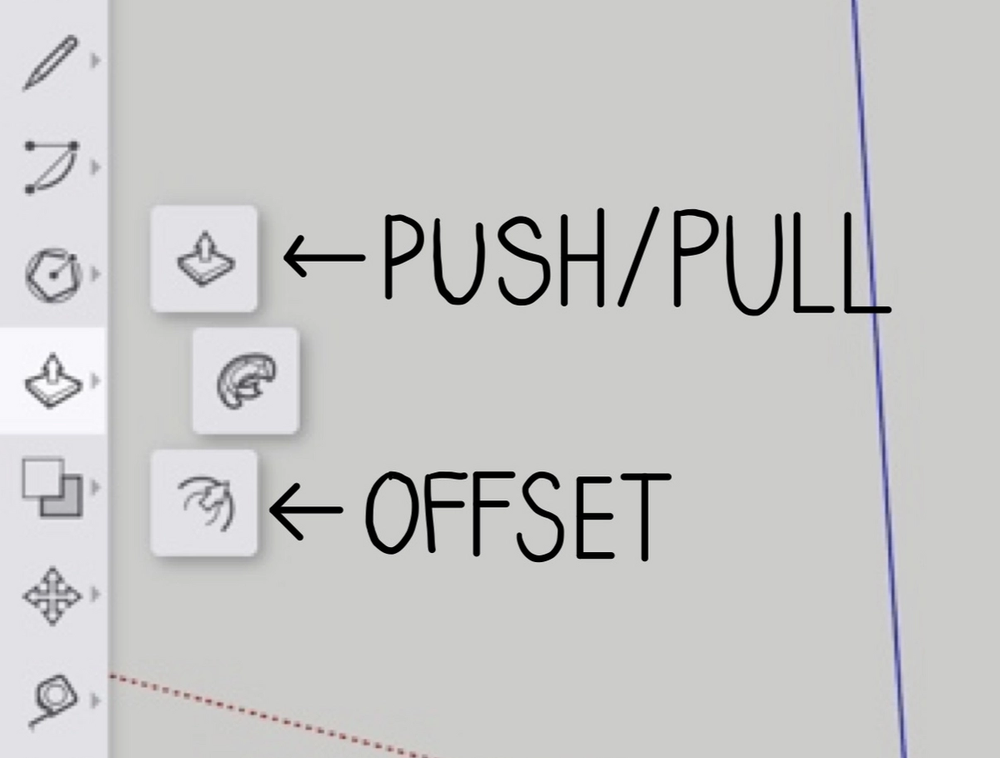
The third variation of the modify tool is the Offset tool. You can create an offset of a line or shape to create an identical line or shape that is the same distance away from the original drawing. The offset drawing can be larger or smaller than the original drawing.
To use the tool, click on a face and move the cursor to make another face that's a dilation of the original face. Instead of moving the cursor to get the right dilation, you can enter a positive or negative measurement to create a more precise and accurate dilation.
Move Tool
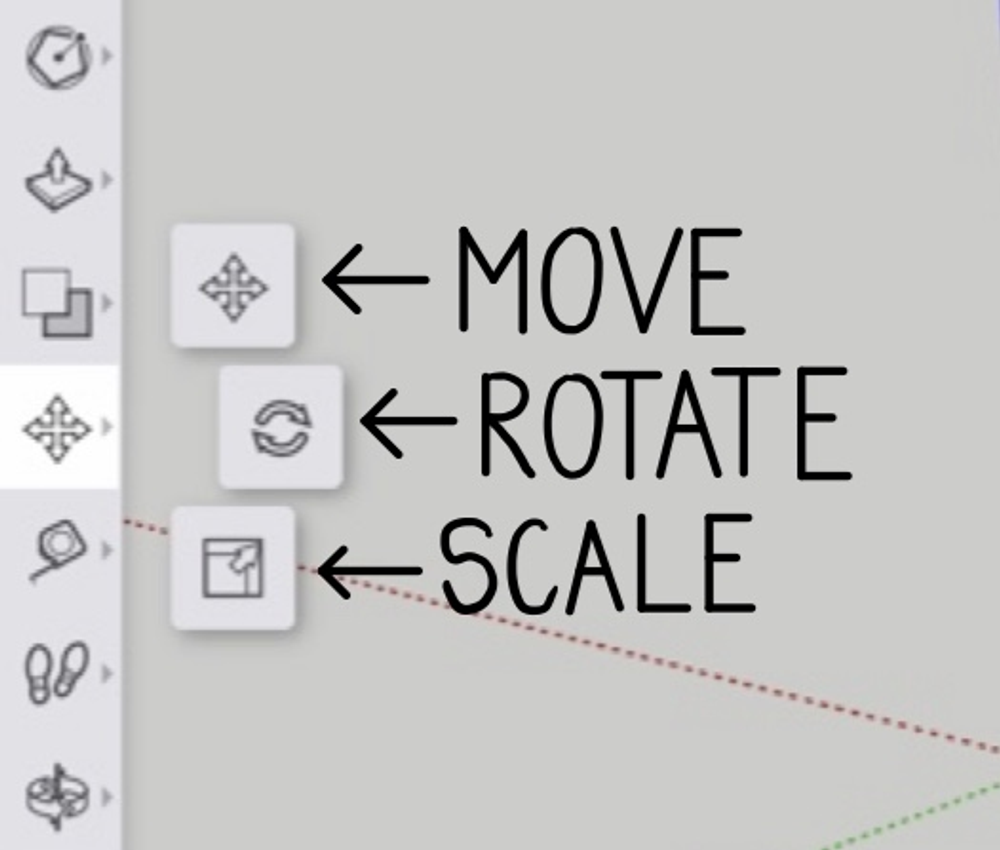
The first variation tool of the move tool is also called the Move tool. The Move tool is not only used to move objects around the workspace; it can also be used to stretch and copy objects.
To move an object, just click on it after selecting the Move tool. After clicking on the object, you can drag it around using your cursor and click again to place it where you want in the workspace. When you use the Move tool to stretch an object in the workspace, you do not need to select the whole object.
You need to click on an edge and drag your cursor to stretch the object. The last function of the Move tool is copying objects. After you click on an object or surface you would like to copy just hit Command + C/Control + C. Then, when pasting the object, hit Command + V/Control + V.
The Rotate tool is the second variation of the move tool. The tool is used to rotate objects you have created in the workspace. When you select the entity you would like to rotate, such as a line, face, or object, click where you would like to establish the pivot point.
Then using your cursor, rotate your object around the angle tool and click again when you have completed rotating the object till it is in the right position.
The third variation of the move tool is the Scale tool. The Scale tool is used to shrink or stretch faces and objects to make them fit the scale and geometry of the rest of the workspace. To use this tool, click on the object or face you would like to scale after selecting the Scale tool. Then, cubed grips should appear around the object. You can click and drag these grips around to scale your model properly.