The Axes
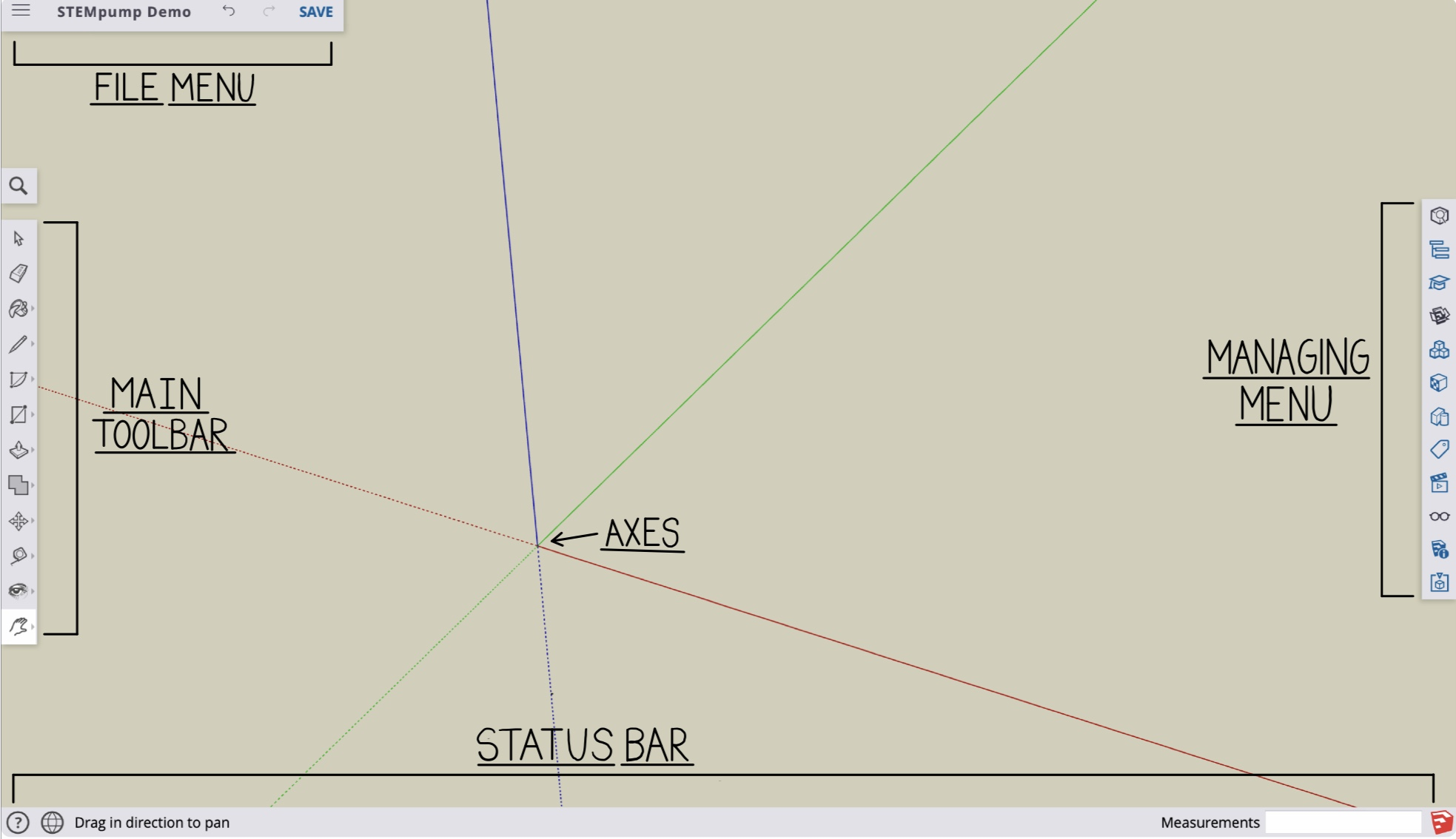
Each workspace opens with three axes at the center of the screen.
The X, Y, and Z axes will allow users to view their models from different angles and keep their models aligned. Each axes is a different color to help users differentiate each one. Along with the axes, a model of a person shows up on the screen when a new workspace is created.
The figure is placed there for scaling purposes and perspective along the axes; however, you can delete it by simply clicking on the figure and clicking delete on your keyboard.
File Menu
The file menu is located at the top left hand side of the screen. The file menu allows you to to name the file, save the file, and also contains the undo and redo buttons.
Main Toolbar
The toolbar on the left hand side of the screen is the main toolbar which will contain most of the tools you will need to create your designs on SketchUp. As you can see, when you open a workspace, there are 11 tools in the toolbar.
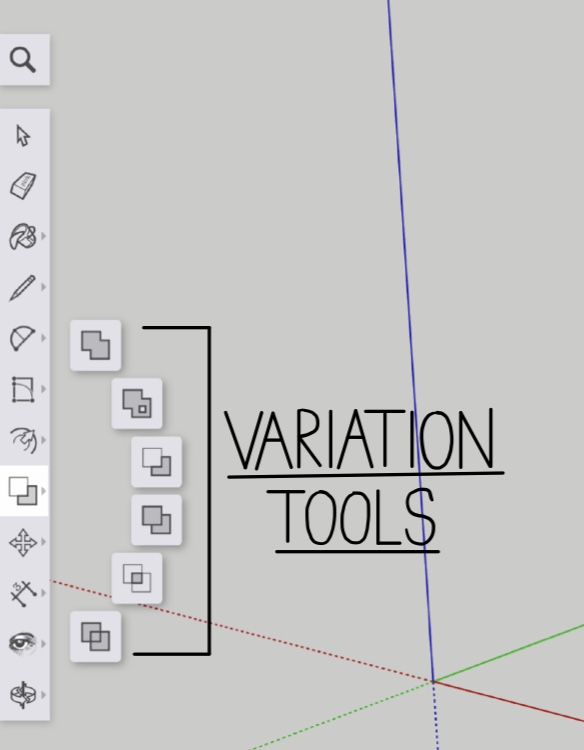
However, when you click on one tool, most of the time, additional tools will pop up next to the tool. These additional tools that pop up are called variation tools. The variation tools are similar to the tool chosen, but they have different functions and allow for additional designing, modeling, and navigational features.We will explain what each tool is used for in later lessons.
For now, it is important that you know that most of the tools we will use are located on the main left hand side toolbar and that most tools have variation tools.
Panels/Managing Menu
The toolbar on the far right hand side of the screen is referred to as the Managing Menu. The managing menu consists of tools that are called Panels. The panels are the tools that allow the designers to style and organize their models in the workspace. Each panel has a different feature to help make the model to be more realistic and accurate.
The panels have a wide range of use; we will explain what each panel in the managing menu is used for in later lessons.
Status Bar
The status bar is the horizontal bar at the very bottom of the SketchUp workspace. When you click on a tool, the status bar gives a short and simple explanation about how to use the tool. The status bar is a helpful reference in case you forget how to use a tool.
The status bar also has a few additional features such as the help center, language selection, and measurement references. The measurement reference is very helpful when designing and modeling. The status bar measurement references are located at the far right hand side of the bar. When drawing lines and faces you may need to pay attention to the measurements to be precise and stay within the scale. The measurements are in terms of the scale you chose when you created the workspace.