Components/3D Warehouse
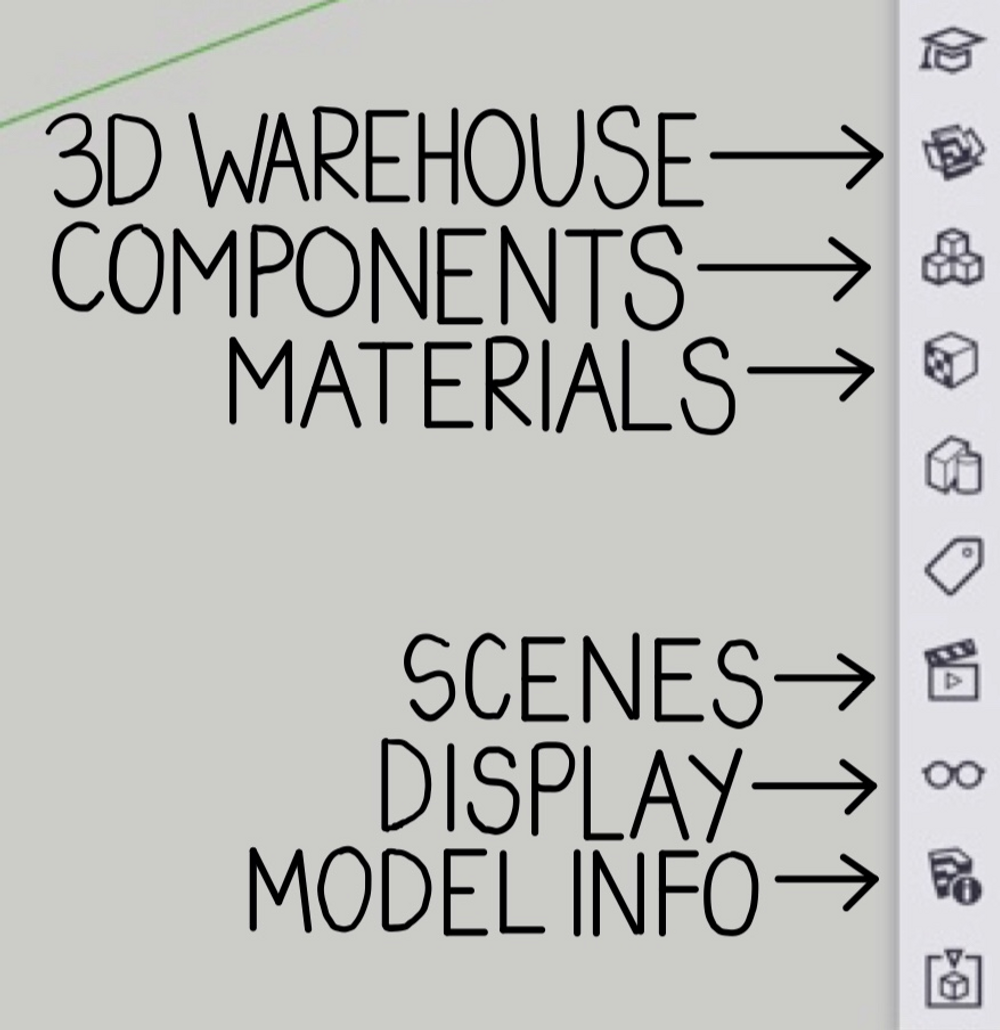
The Components panel is the fourth panel in the modeling menu. The Components panel directs users to SketchUp’s 3D warehouse. The 3D warehouse included already created 3D models of various objects, buildings, etc.
After clicking on the Components panel, you can either browse through the entire 3D warehouse or use the search bar to find a 3D model of anything you may need to use in your workspace. Many users, who create large scale models with many components, will likely find the 3D warehouse useful. After finding a model you would like to use in your workspace, you can download and import the model into your workspace.
Materials
To make your model more detailed and accurate, you can use the Materials panel to change the material of an object, face, etc. First, click on the Materials panel, which is the 6th panel on the managing menu.
Then, you can use the Select tool to choose any entity you would like to change the material of. Click on the entity and select your desired material from the materials found in the Materials panel. This panel allows the model to look more realistic and adds more details.
Model Information
The next panel is the Model Information panel. The Modeling Information panel is the 11th panel in the managing menu. The Model Information panel allows users to alter dimensions, lengths, angles, and much more! You can change these details for a face, line, or object.
You can choose the Model Information panel and select the entity you would like to view and then alter the information by selecting the desired values of the features in the Model Information panel.
Display
The 10th panel in the modeling menu is the Display panel. The Display panel allows designers to adjust various features in the workspace. Tools in the panel such as hidden objects, section planes, shadows effect, edges, etc. help designers create their models in the workspace.
Scenes
The Scenes panel allows users to select a specific view of the model they have created in the workspace. This panel is an alternative to using the different navigation and orientation tools. You simply choose the Scenes panel and select the appropriate view you would like.