Selection Tool
The selection tool allows users to select entities, such as a line or an object, to modify using the other tools in SketchUp.
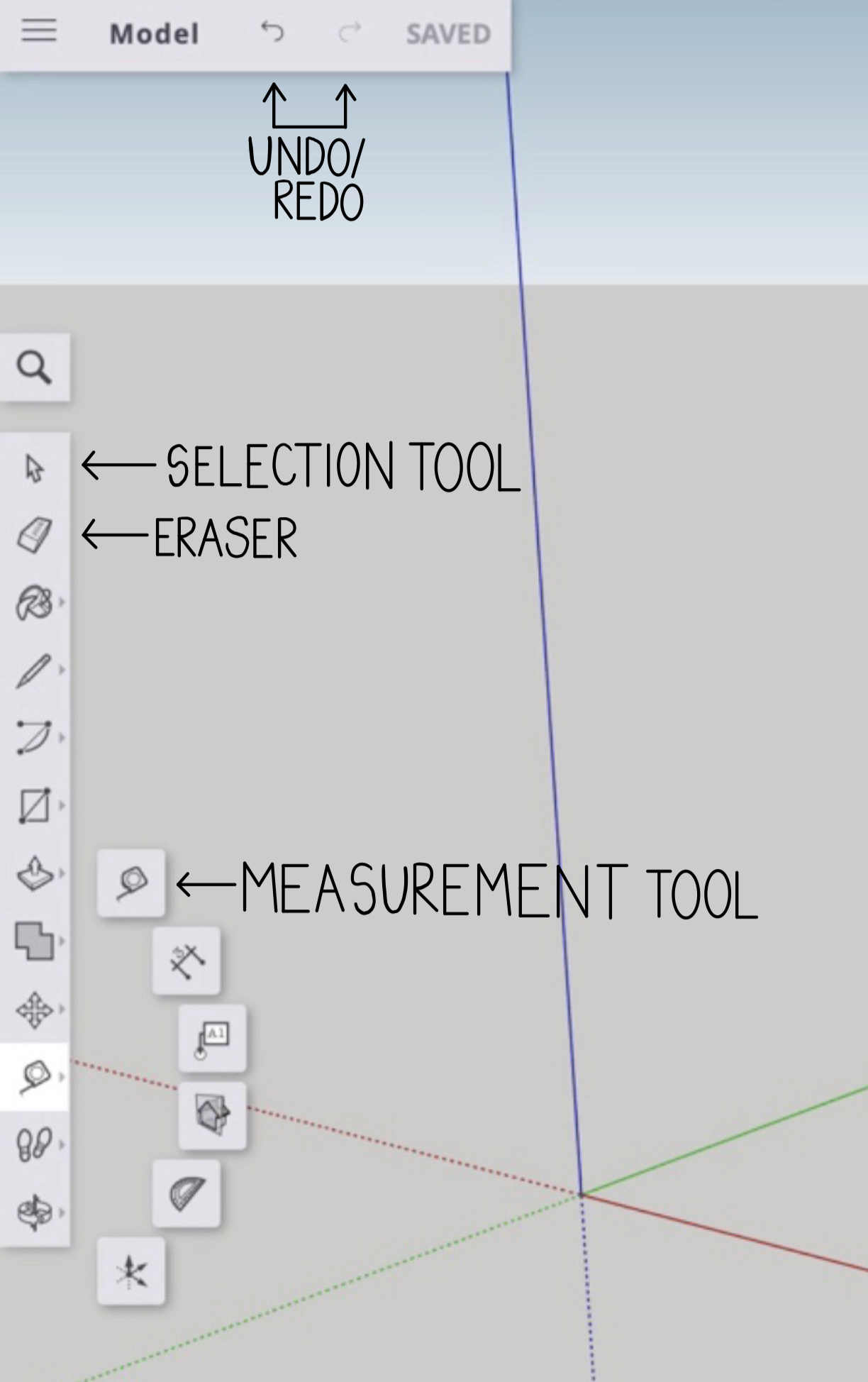
Make a Mistake?
When we begin designing and modeling on SketchUp, you will likely make a mistake or do something you did not mean to.
Thankfully, there are tools in SketchUp that can help fix these mistakes. At the top left hand side of the screen, you should see the undo and redo buttons next to the file name.
The undo and redo buttons are the best way to fix quick, immediate mistakes. To correct or change flaws in your design without the undo and redo buttons, you can use the eraser tool. Click the second button on the left hand toolbar with the eraser icon.
To use the eraser, simply press down and drag across the lines, faces, or items which you would like to delete. You can also delete smaller objects, faces, or lines by choosing the selection tool and clicking on what you want to remove. After selecting the object, face, or line, you can just hit delete and it will get rid of what you selected.
Measurement Tool
The measurement tool is the first variation tool of the icon with a measuring tape.
To use the measuring tool, click a starting point and drag your cursor to see the length in the right hand side of the status bar.
You can even click again when you get to a specific length to leave a reference point, which can help make your models more accurate when designing.