How do we make our player jump?
In order to make the player jump, we will follow the same method we used to enable the player to move forward.
We will first click on the "Player" asset in the Assets panel and go to "Add Brainbox" in the bottom right corner, except this time, we will add the "Jump" component to our player.
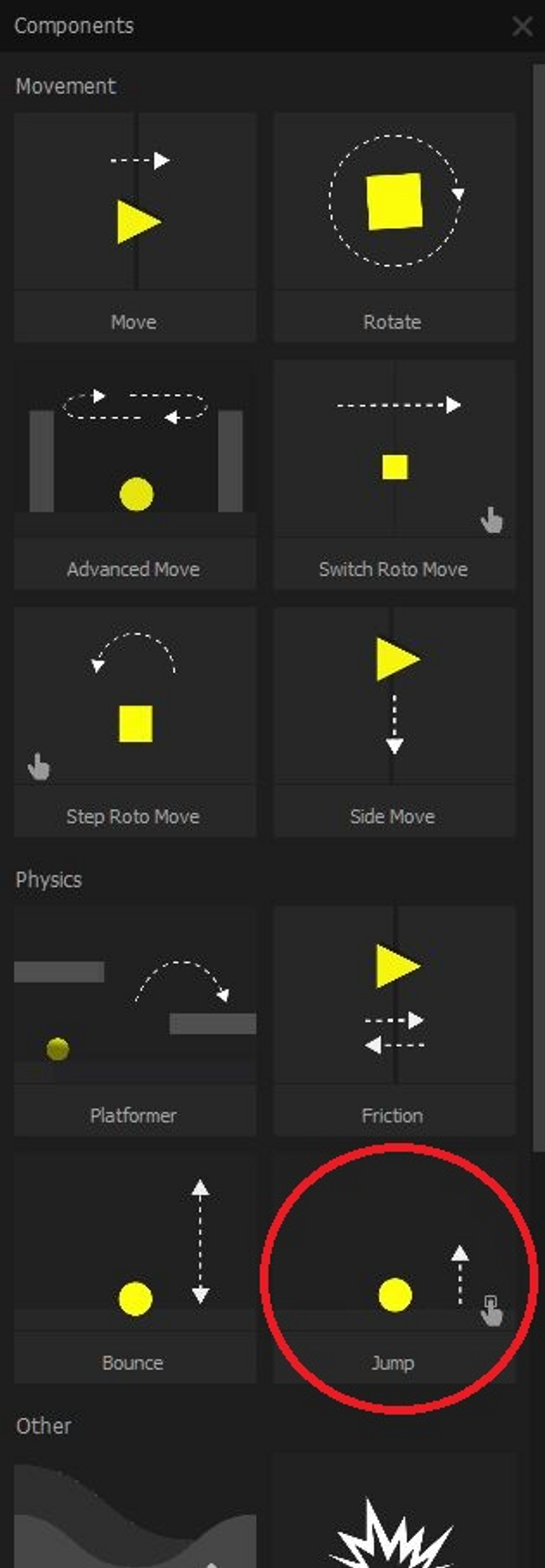
Now, if we were to test out the game, we can see that the player jumps every time you click the screen!
However, when we jump it almost feels like our game is taking place on the Moon, considering how high it can jump and how slowly it falls back to the floor. This can make avoiding obstacles incredibly difficult as it would be very tedious and near impossible to estimate how you would pass the obstacles heading your way.
How to increase the effect of gravity
In order to make our player feel more grounded, we need to head over to the Mind Map, which you access by clicking the icon that branches out to three circles in the top left corner.
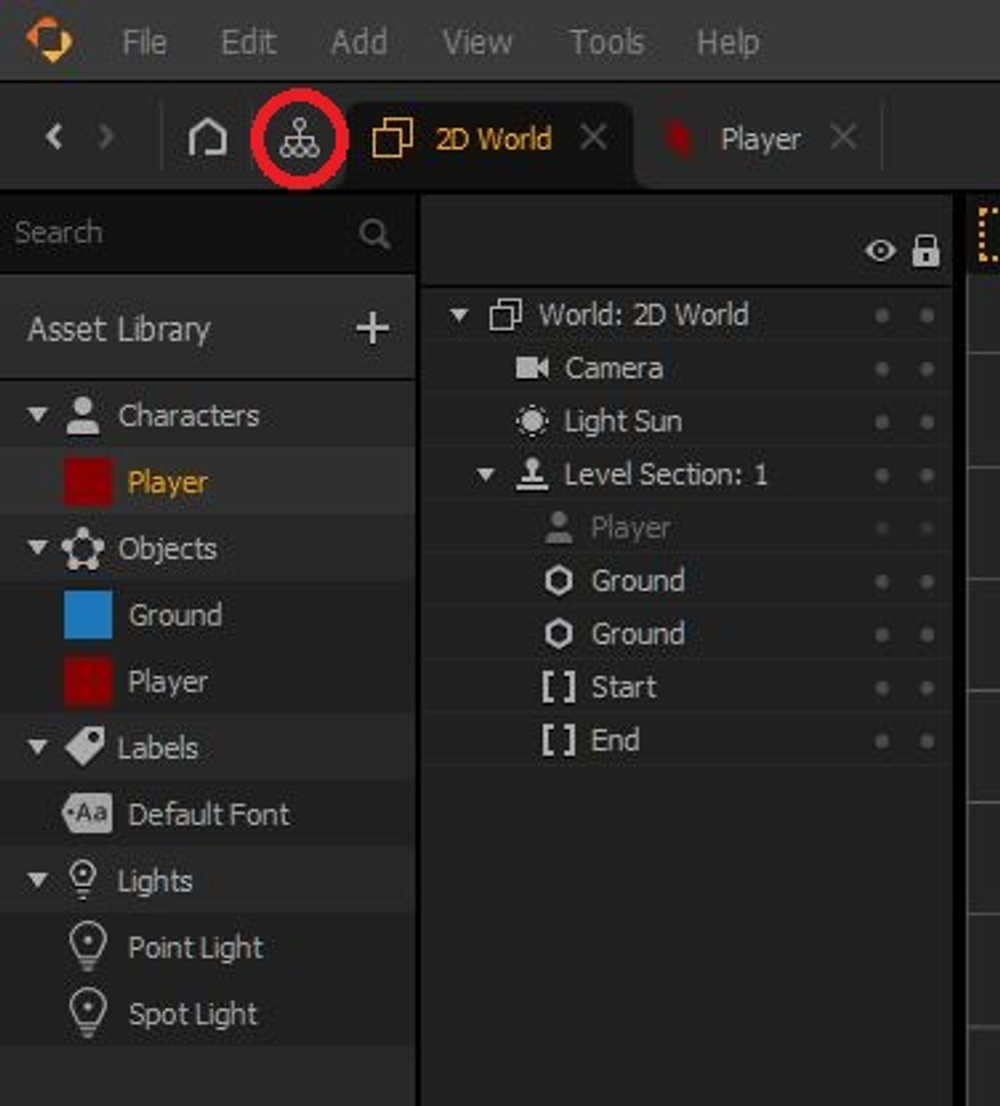
Once you are in the Mind Map select the "2D World" node.
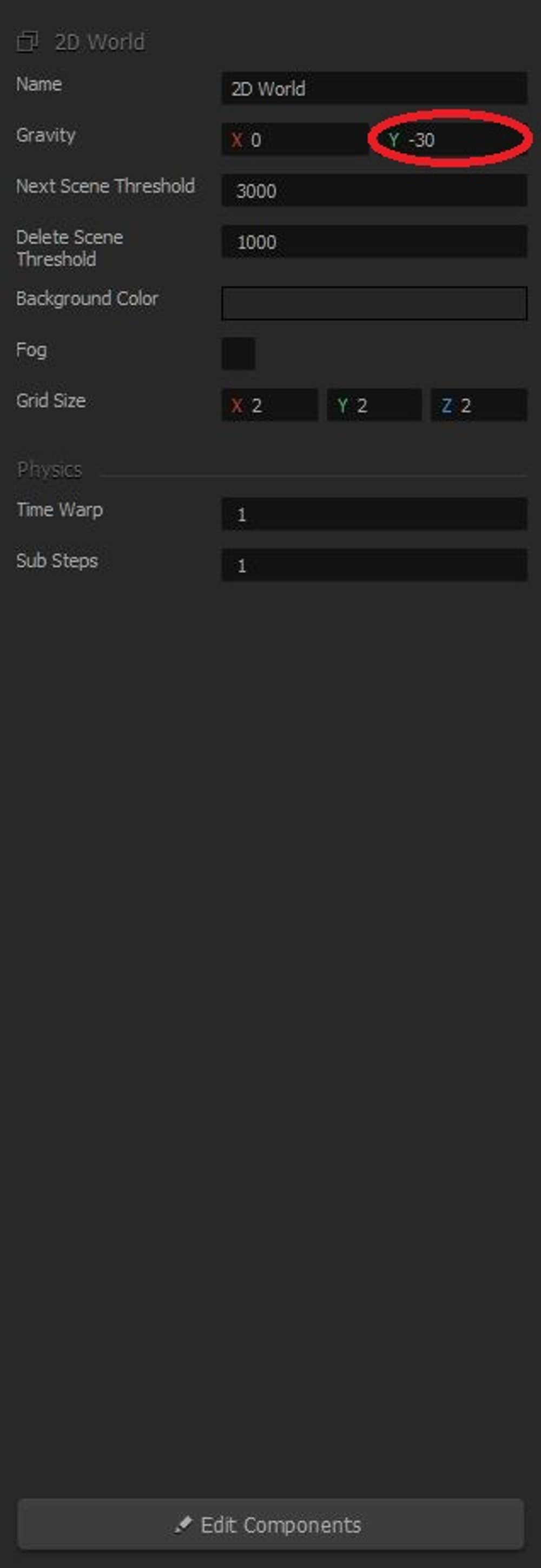
From there, you will find on the right side of the screen an area labeled "Gravity". Here, we want to change the Y-gravity from -9.8 to -30.
Side note (optional)
You can also change the jump height if you want to.
To do this, double click the "2D World" node or switch to the "2D World" tab next to the Mind Map icon.
Then click on the "Player" asset and go to the area on the right side of the screen labeled "Jump".
From there, you can change the jump force by changing the value of Y. You can test the game multiple times, each time varying the jump force, to see what you like the most.
Now that we've pretty much finished all the motion we want our player to do, let's introduce some obstacles to give our player a challenge while playing.