How do we make the player move?
The first step we need to take to make our player move is to first click on the "Player" in the Assets panel (the left side of the screen).
From here, you will see a big button in the bottom right corner called "Add Brainbox".
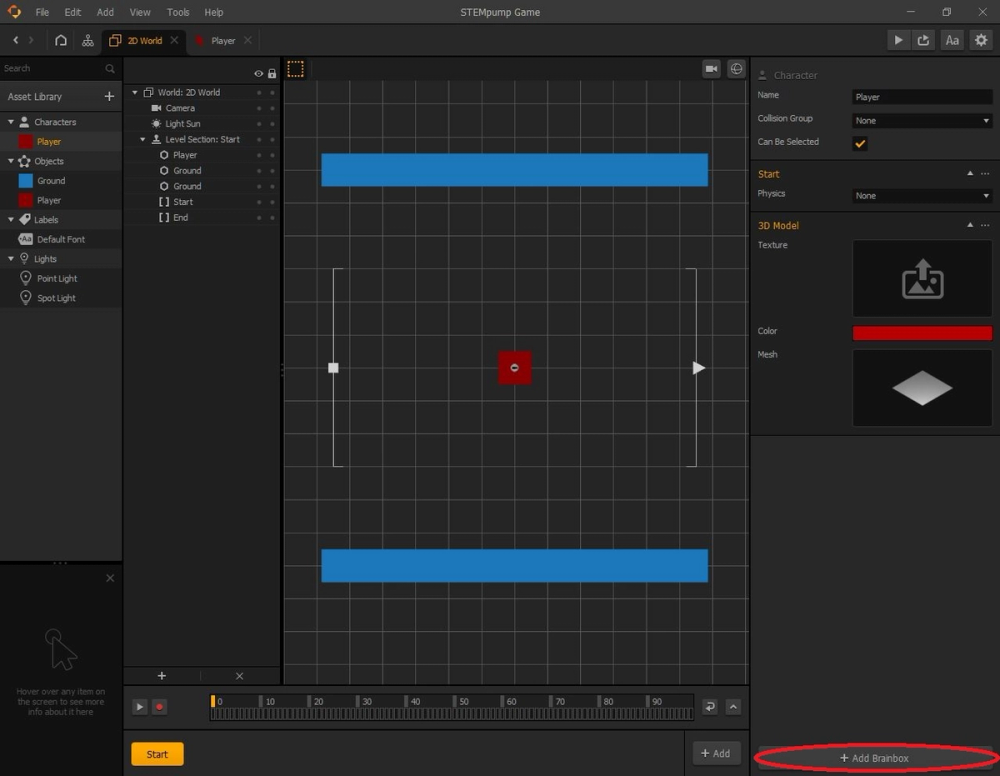
If you click on the "Add Brainbox" button, you will see a wide variety of different types of motion, ranging from classical movement to friction to bouncing.
For now, we are just concerned with moving the player forward, so we will need the "Move" component, which is the very first component in the "Add Brainbox" tab.
Click on the "Move" component. This should add the function to the characteristics of the "Player" asset.
We can witness our player move by testing our game by clicking the play button mentioned in the previous lesson.
After previewing our game, it is clear that the player is moving very slow. To speed up our player, we can change the X-value next to "Speed" in the "Move" component.
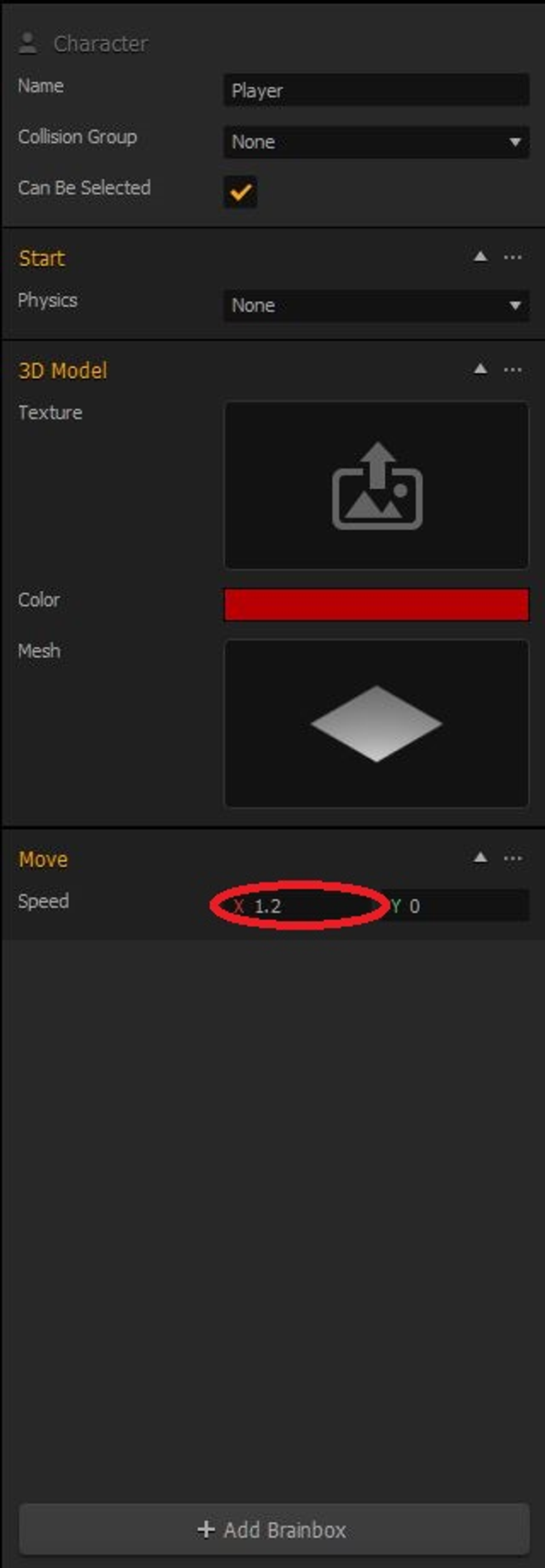
Let's change the speed to 20, and test the game.
As you can see, the speed is fixed, but there's still a big problem: the player leaves the screen and doesn't come back!
We will solve this problem in the next lesson.