How can we see our score?
In order to see our score while we play the game, we need to go to the Mind Map, first.
Now, you should see on the left side of your screen an area called "UI Screen".
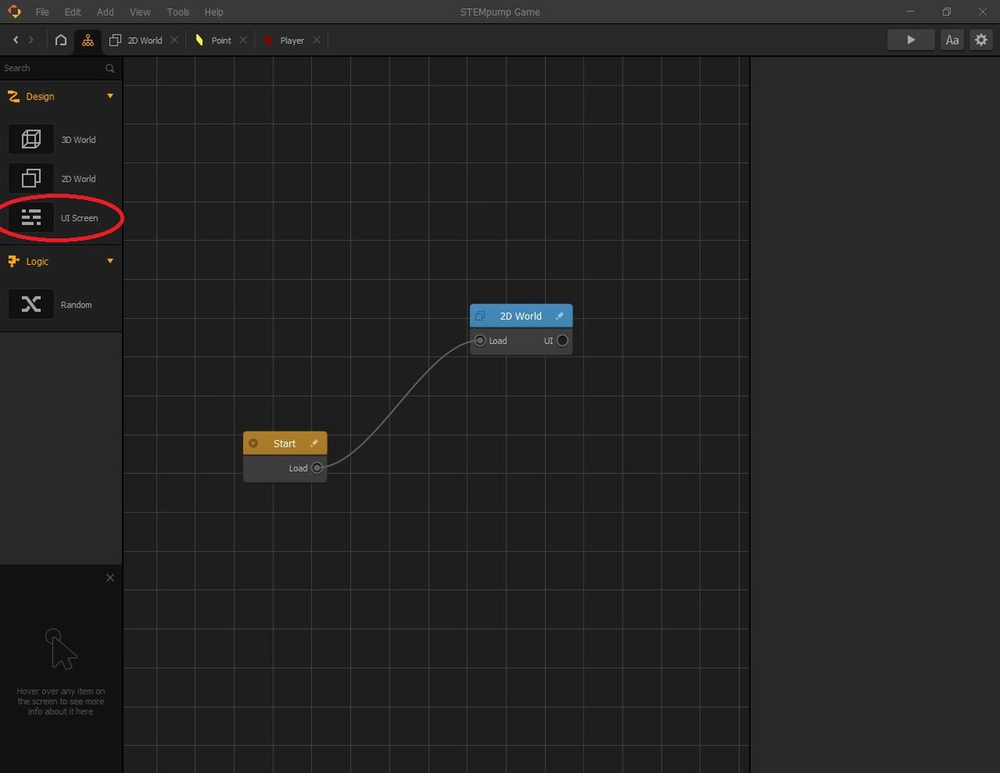
Drag the node from the side of the screen into the Mind Map grid. We will connect the "UI" output from the "2D World" node to the "Load" input from the "UI Screen" node.
Rename the UI Screen node to "Score UI", by clicking on the name area on the right after selecting the "UI Screen" node.
Next, double click on the "Score UI" node, and you should see a screen like this:
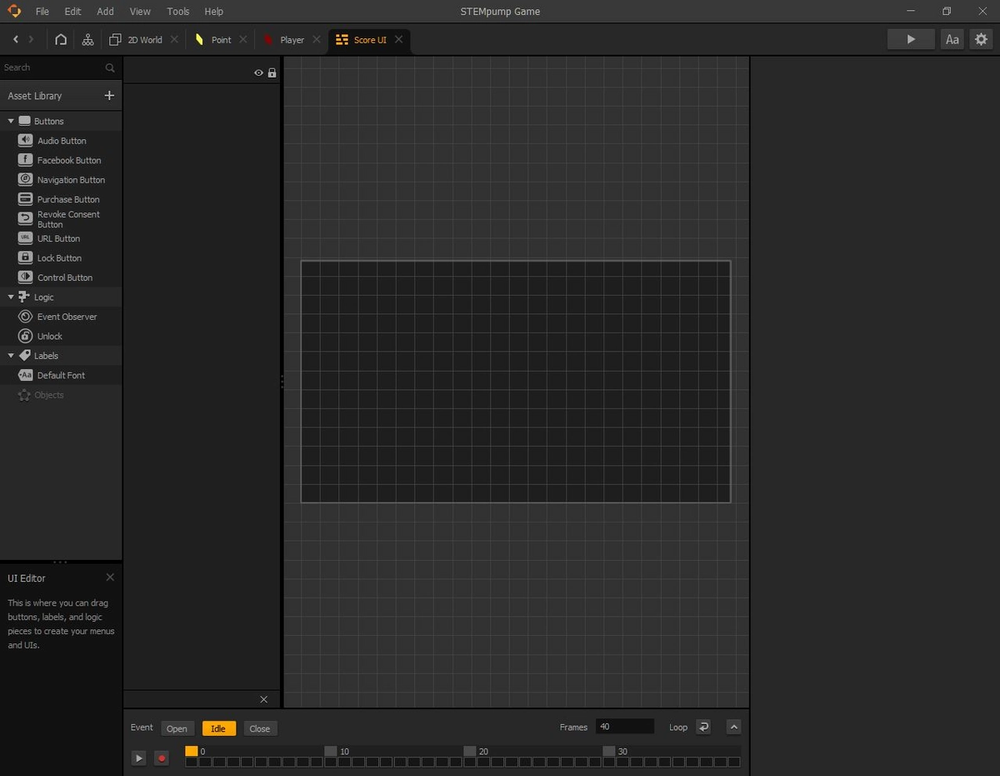
Creating a score display
On the left side of the screen, locate "Default Font" under the "Labels" tab.
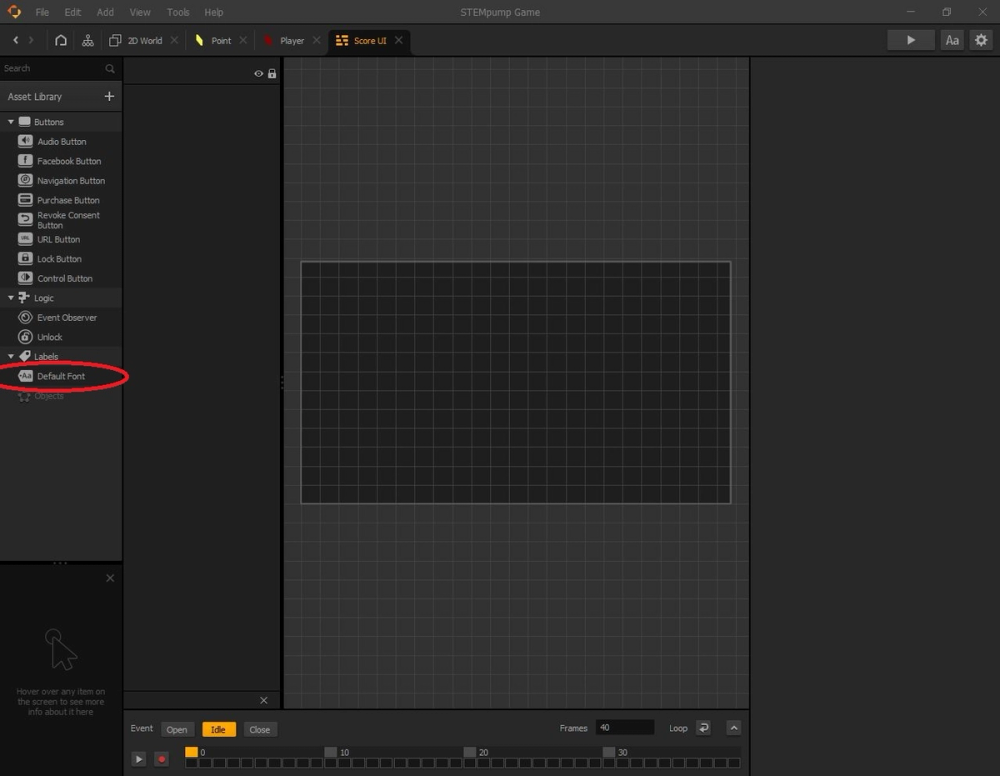
Drag the "Default Font" to the top right corner of the grid (the darker rectangle).
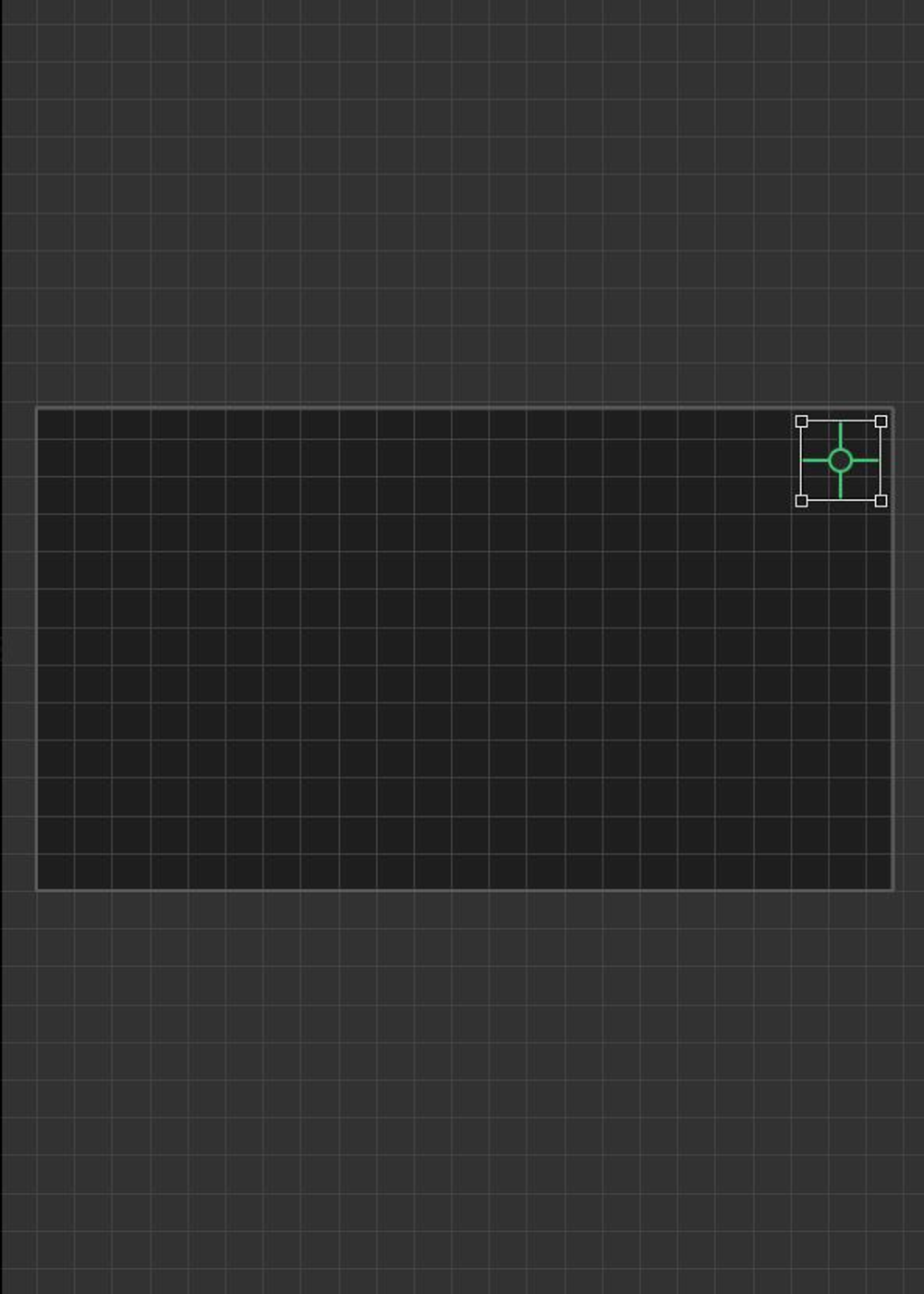
Rename the text area to "Score Display" by locating the name area on the right side of the screen. Next, change the "Function" from "User Text" to "Score", and the "Amount" from "Best" to "Current".
NOTE: If you are testing the game, and the score stays at zero even after you collect one of your point assets, change the "Score Type" from "Points" to "Coins" or vice versa.
In the next lesson, we are going to make a "Game Over" screen once the player dies.