Creating the player
Instead of going through all the work and making our own asset from the "Asset Library", we can just reuse the asset we already have. The style of this is supposed to be simple and smooth, even though there is a hidden complexity behind the magic.
We are going to make our player a simple square. Well, squares have 4 sides. What's another asset we already have that also has 4 sides? That's right! We can use the "Ground" asset we created earlier!
To copy the asset, click once on the Ground asset on the left side and press D on your keyboard to duplicate it.
Making the player unique
So, we made another asset that is the exact same as the asset we are using for our floor and ground. How are we supposed to differentiate it from the other asset that looks identical to it?
Well, the first thing we can do is rename the new asset we made from "Ground" to "Player" by clicking on the bar next to "Name".
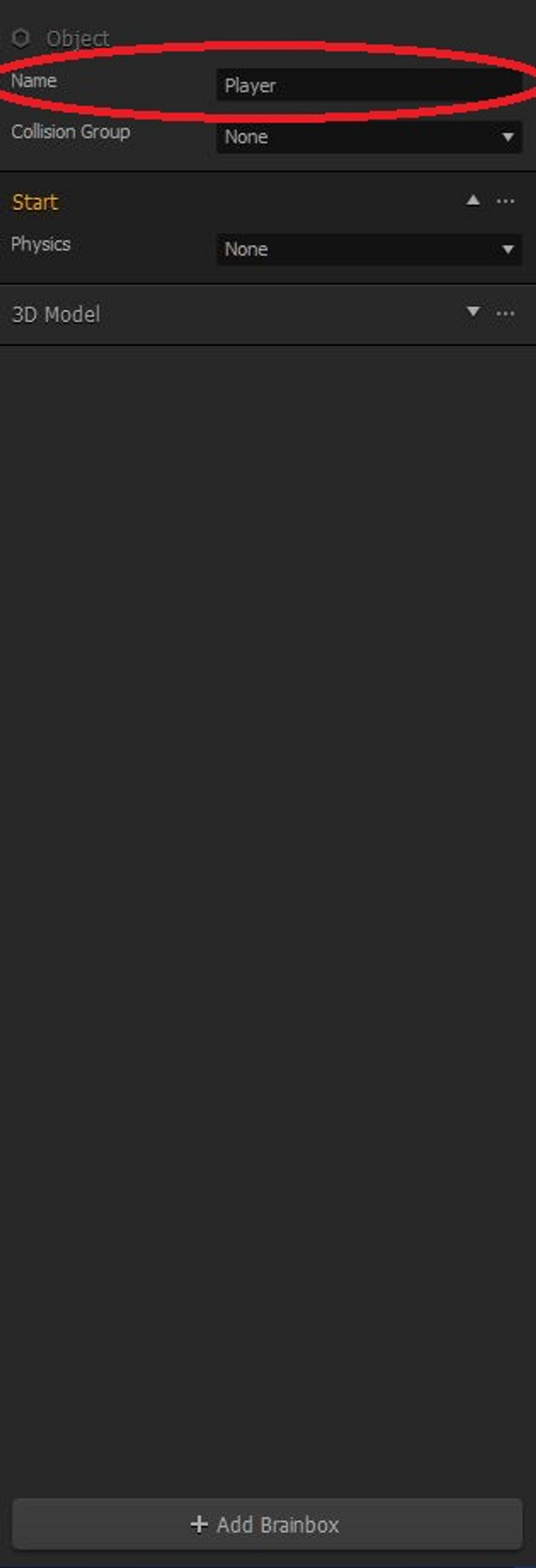
Since the "Player" asset is a direct copy of the "Ground" asset, we do not have to go through the process of making the "Player" have a "3D Model" node attached to it.
However, in order to further differentiate our player from the environment around them, we should change the color of the player. To do this, click on the bar next to "Color" on the right and feel free to make it whatever color you want, as long as it is different from the environment color
Putting the player in the game
Now, let's add our player to the scene. We want it to start right in the center of the screen, so first, drag the player from the left side of the screen into the grid.
Then, change the X and Y positions so that they are both at zero.
Making the game recognize the player as a character
We have our player in the game scene, but all our player is at the moment is just another environmental sprite that is not different from the floor or the ceiling, based purely on functionality.
To make Buildbox understand that our "Player" asset is an actual character, we need to drag the "Player" asset to the "Characters" tab.
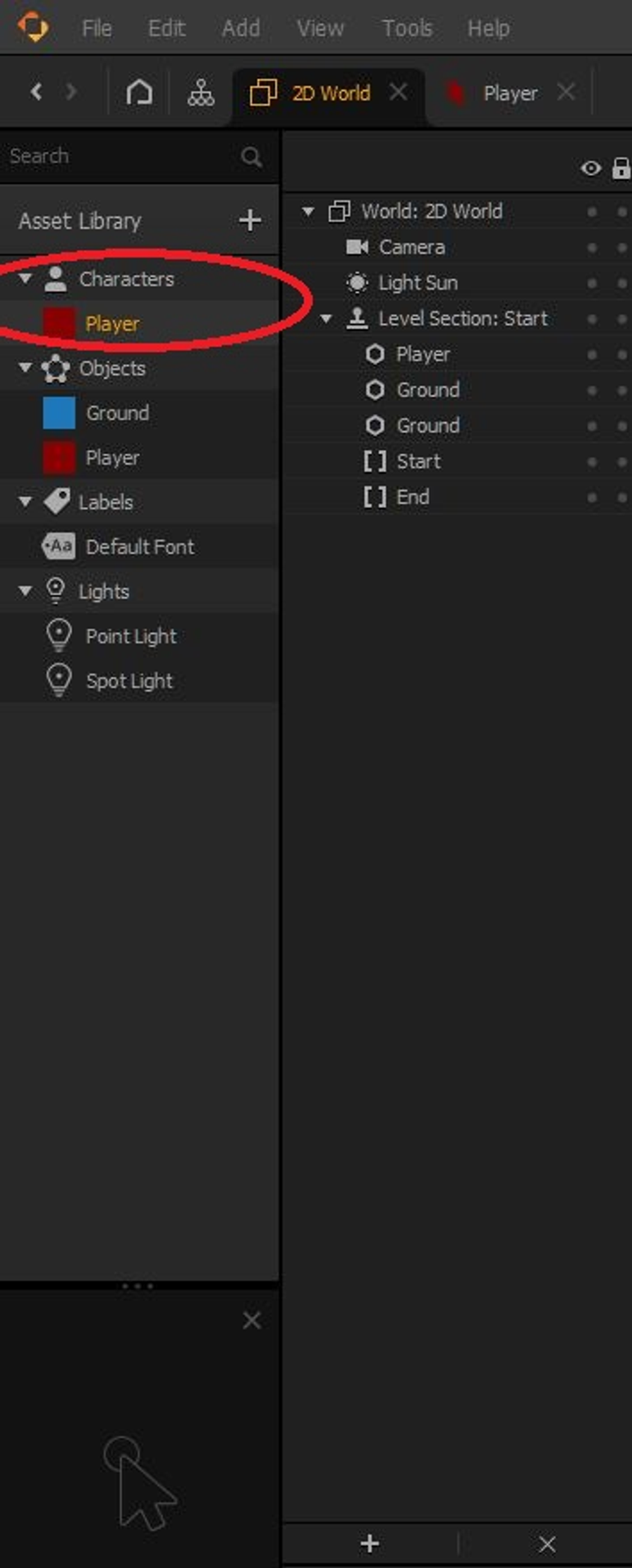
Now that our character has been added to the game and is recognized as a character, let's move on to changing the camera position.