Positioning how we want to view the game.
Moving the camera to change the viewpoint of our game is not hard to do.
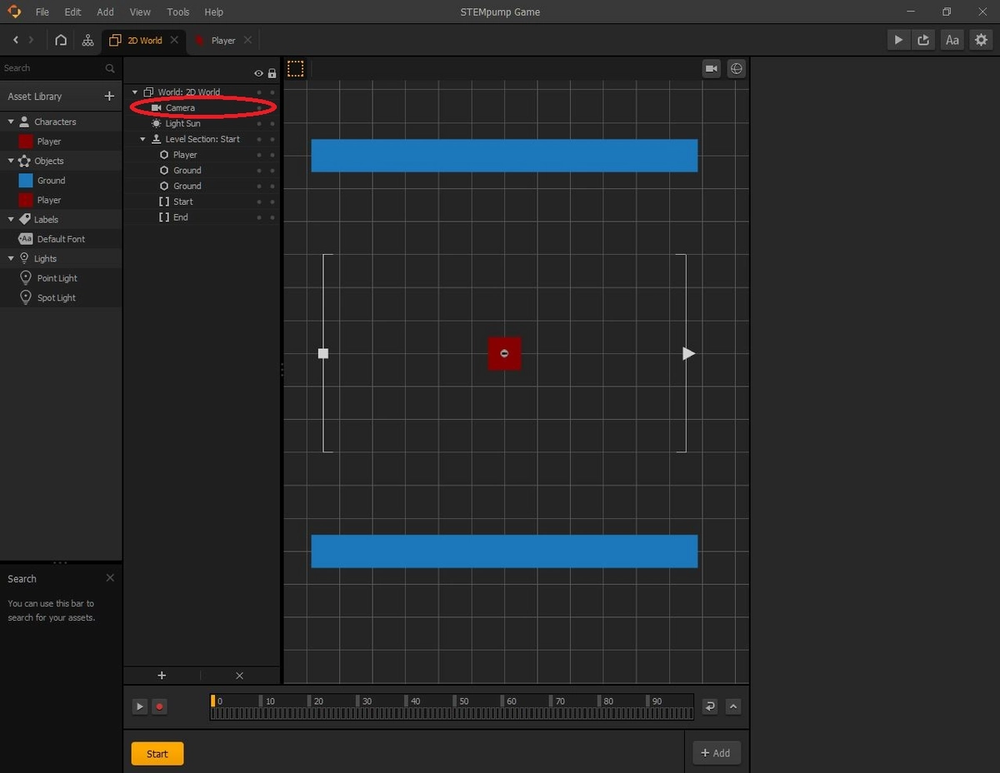
Simply click on the "Camera" that is adjacent to the "Asset Library" and change the X and Y position so that they are both zero. Notice that the camera should be directly on top of the player if this is done right.
The location of the "Camera" is shown below:
How do we see what the camera sees?
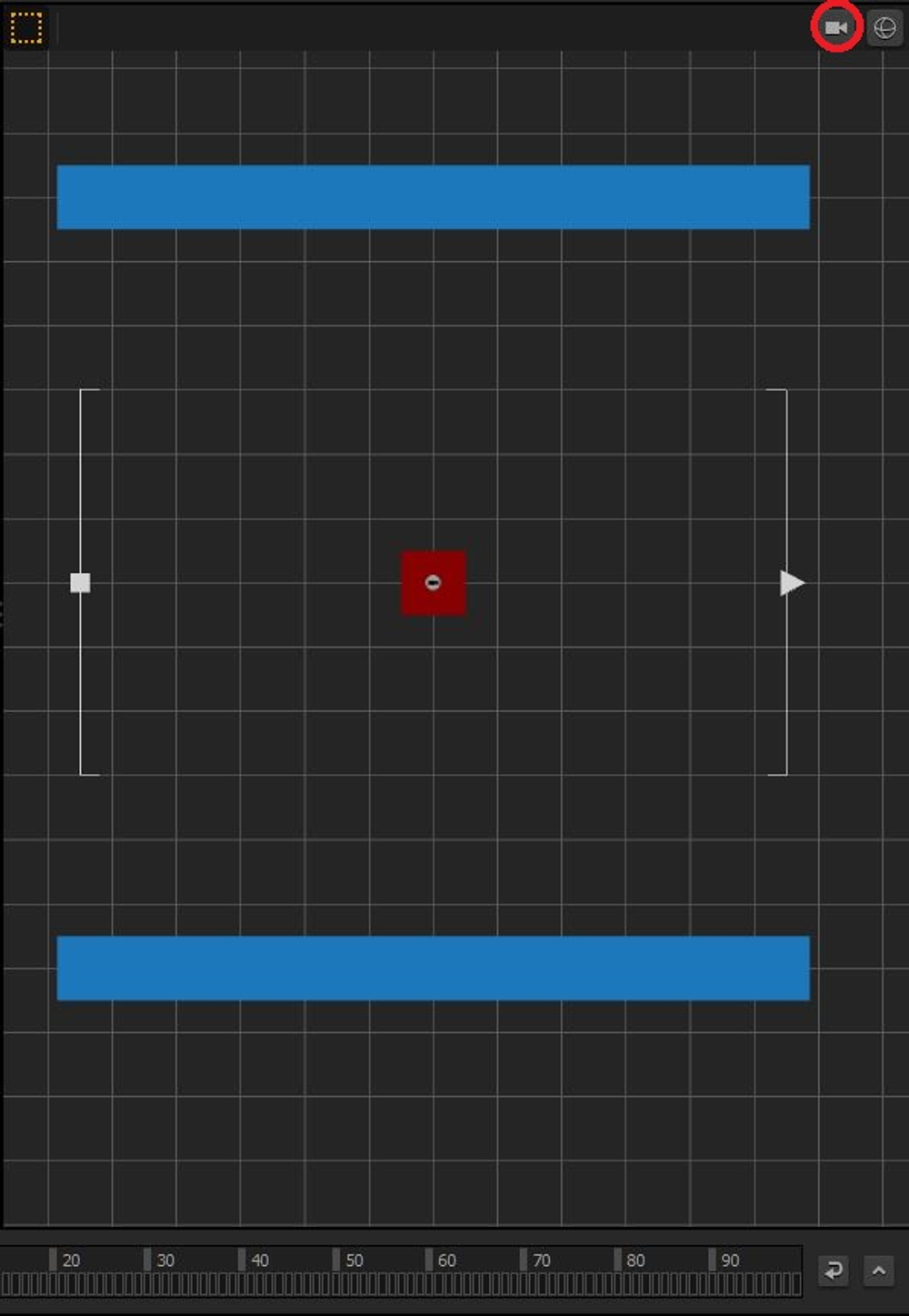
To see what the camera sees, and what the game would look like from a player's perspective, you can click on the camera icon in the top right corner of the grid.
The camera icon is located here:
How do we resize the camera view?
Once you are able to see the game from the camera's (and the user's) point of view, you will notice that the camera seems a little too close for comfort on the player. A key part of game design is making sure that the player can see all the things in the game that you, as a game developer, want them to see.
In this scenario, we want our player to see the floor and the ceiling, instead of being surprised when it seems to pop out of nowhere.
To increase the field of view, all you have to do is scroll out while you are in the camera view until you are satisfied with how the game looks from a player's perspective.
Then just click out of the camera view when you are done.
To give you an idea of how far out you should zoom, you want to show the entirety of the floor and the ceiling, and have a decent margin of empty space, so that the game does not feel too cramped or crowded.
Here's an example of how you should make your camera perspective appear like:
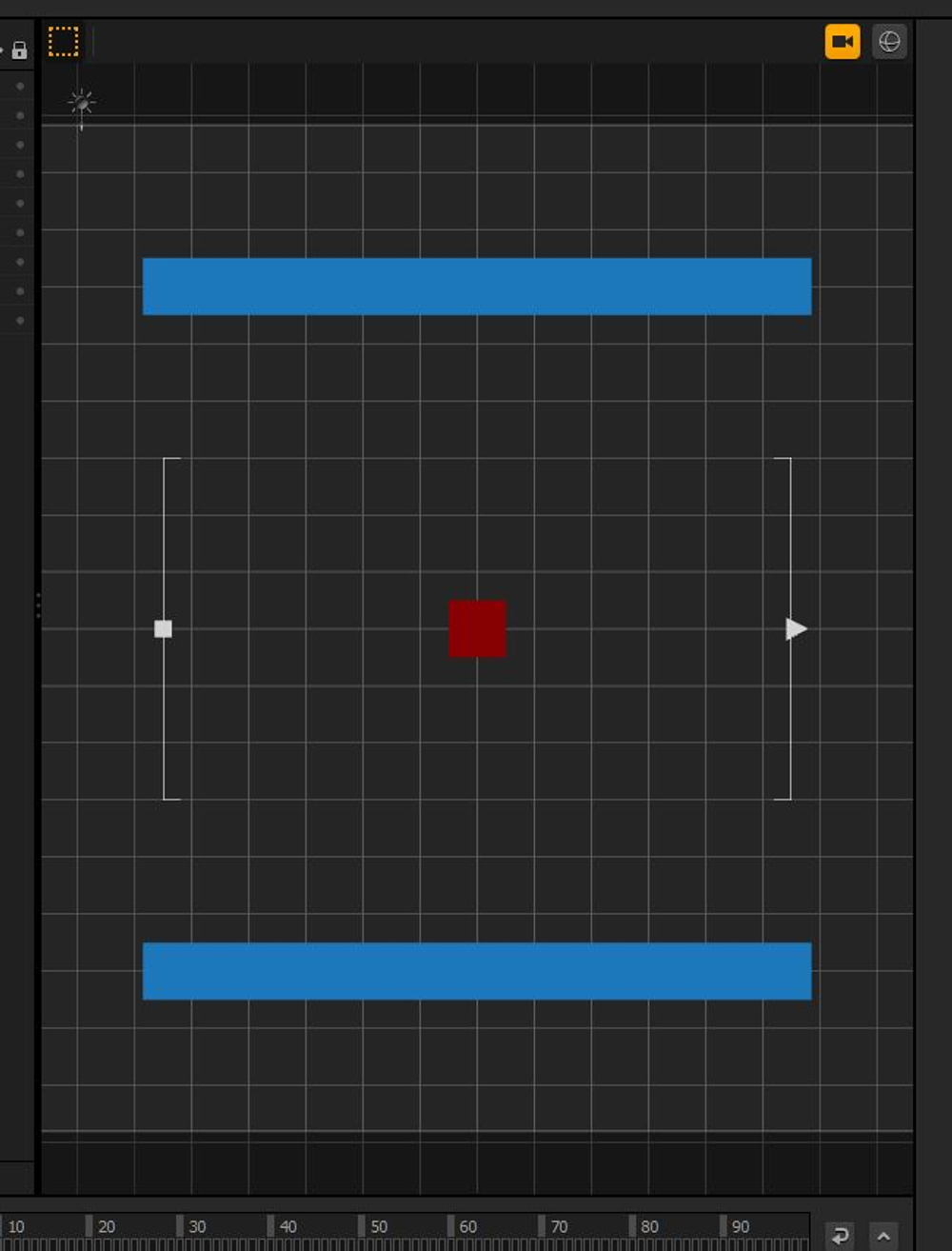
P.S. Your camera view does not have to look exactly like the one shown in the image, but game design is not just about knowing how to make a game. It also centers around how critical the design of the game makes the user feel. Well thought out and properly executed game design is what separates a good game from a great game.
In the next lesson, we are going to cover how to test our game!